Step-by-Step Guide
Signing Up for Affinity
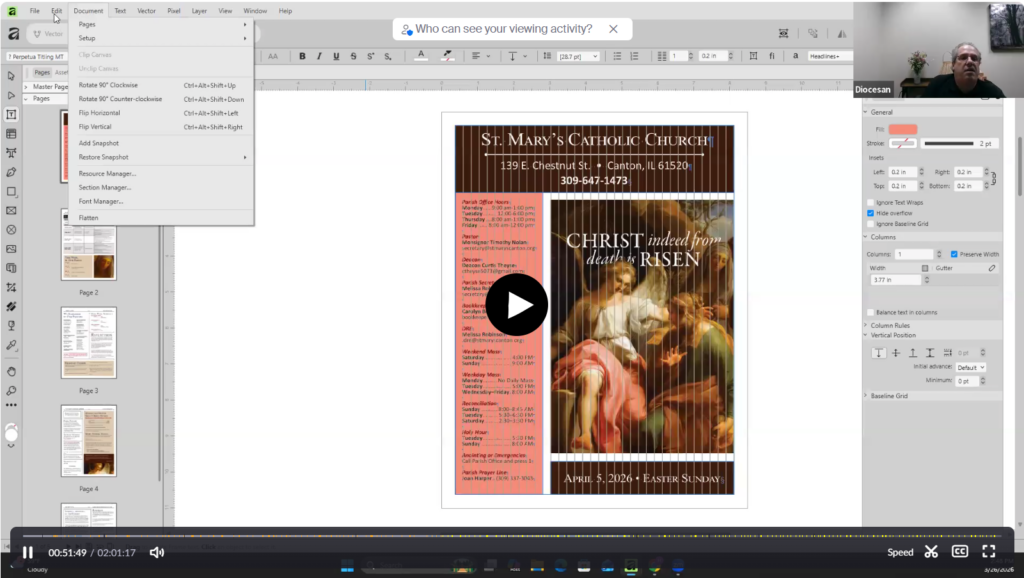
Webinar Video
Step 1: Go to Affinity Homepage. Click Sign Up.
Click the “Sign up to download” button on the Affinity homepage at www.affinity.studio/get-affinity. This will redirect you to the Canva authentication page where you’ll see multiple signup options.
- The Affinity software is completely free to download and use.
- You’ll use the same email address and password for both Affinity and all Canva products.
- After completing email verification, you’ll be able to download Affinity for macOS or Windows.
- Make sure to check your spam/junk folder if you don’t see the verification email within a few minutes.
- You can resend the verification code if needed using the “Resend in X seconds” option.

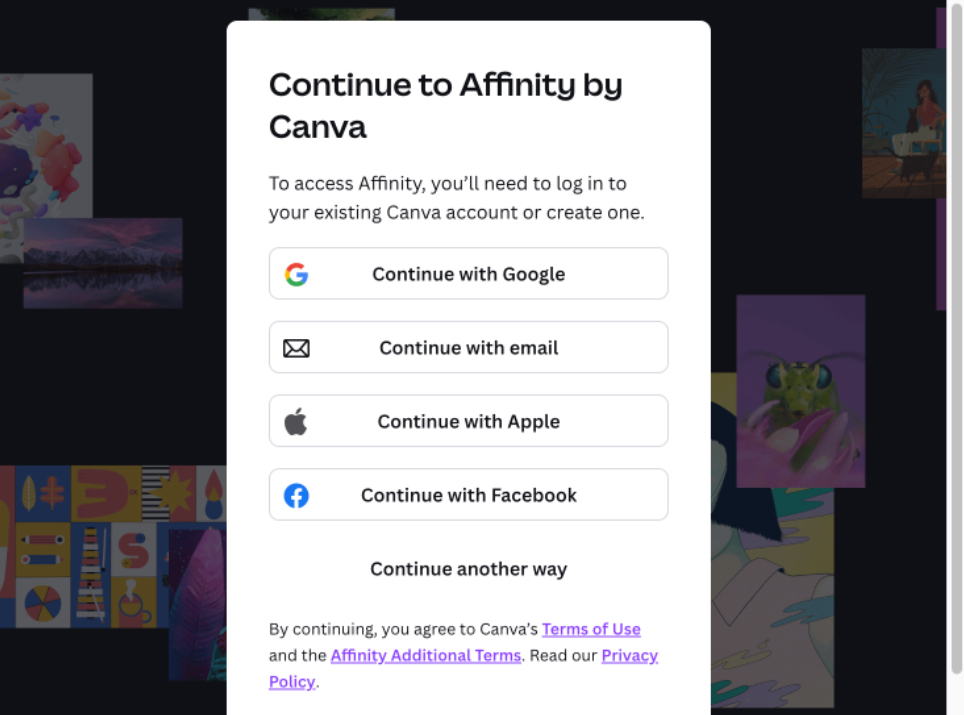
Step 2: Choose “Continue with Email”
On the signup page, you’ll see several options including Google, Apple, Facebook, and Email. Click the “Continue with email” button to sign up using your email address.
Step 3: Enter Your Email Address
Enter your email address (personal or work) in the text field. Once you’ve entered your email, click the “Continue” button to proceed.

Step 4: Create Your Account
After clicking Continue, you’ll be taken to the “Create your account” page. The system will pre-fill your name field with a suggested name (in this case “Secretary”). You can keep this or change it to your preferred name. Click “Continue” to proceed to the next step.

Step 5: Verify Your Email Address
You’re almost signed up! Affinity will send a verification code to the email address you provided. Check your email inbox and enter the 6-digit code in the “Code” field shown on this page. Click “Continue” to verify your email. If you don’t receive the code within a few minutes, check your spam folder or use the “Resend” option.

Step 6: Download Affinity To Your Computer
Proceed to download the correct version for your computer operating system (Mac or Windows). If you are using Windows and are unsure which version to download, see below.
How to Determine If Your Windows PC Uses Intel/AMD or ARM:
1. Press the Windows key on your keyboard and type “Settings”
2. Open the Settings app.
3. Go to System > About
4. Under Device Specifications, find System Type
– x64-based processor: Your computer uses a 64-bit Intel or AMD processor
– ARM-based processor: Your computer uses an ARM processor (ARM64)

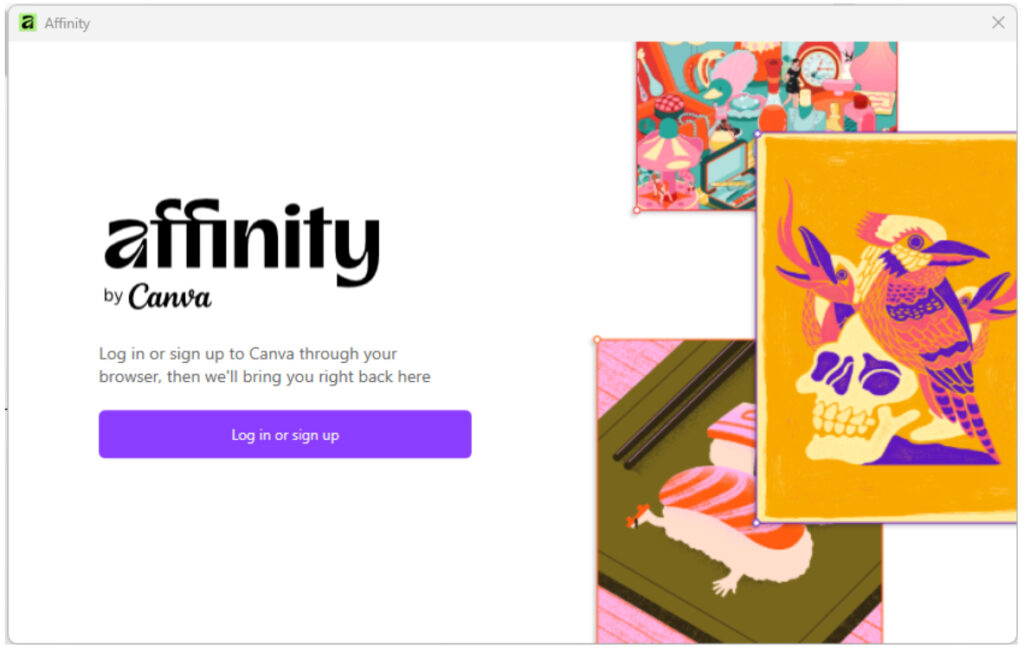
Step 7: Proceed With Login
When opening the application for the first time, you will be prompted to log into the account you set up earlier. Click the “Log in or sign up” button.
Step 8: Signing in to the Application
At this point, you will be directed to a web page that will prompt you to connect your account to the Affinity Studio program. Click “Continue” if the email matches what you used to create the account in Step 3. If prompted to Open Affinity, click “Open Affinity”, and the program should open.