To provide the best possible service and resolve your issue efficiently,
a support technician may need to view your computer screen exactly as you
see it. If needed, our support staff will ask you to click the Remote
Assistance button to launch the remote viewer and will guide you step by
step through the simple process of connecting.
How Do I Add Photos to an Existing Envira Gallery?
Updated
You can add photos to an existing Envira Gallery by following these steps. Envira Gallery allows you to display a large number of images without having to manually add each image one by one to a page/post. Once you have a gallery made, you can always go back and add more images.
Here is how to add photos to an existing Envira Gallery:
Once logged in, click on Envira Gallery in the menu on the left-hand side of the Dashboard.
Click the title of the gallery you’d like to edit.
Drag and drop files from your computer into the dotted border area, click Select Files From Your Computer to open a file browser, or click Select Files From Other Sources to add files from the Media Library
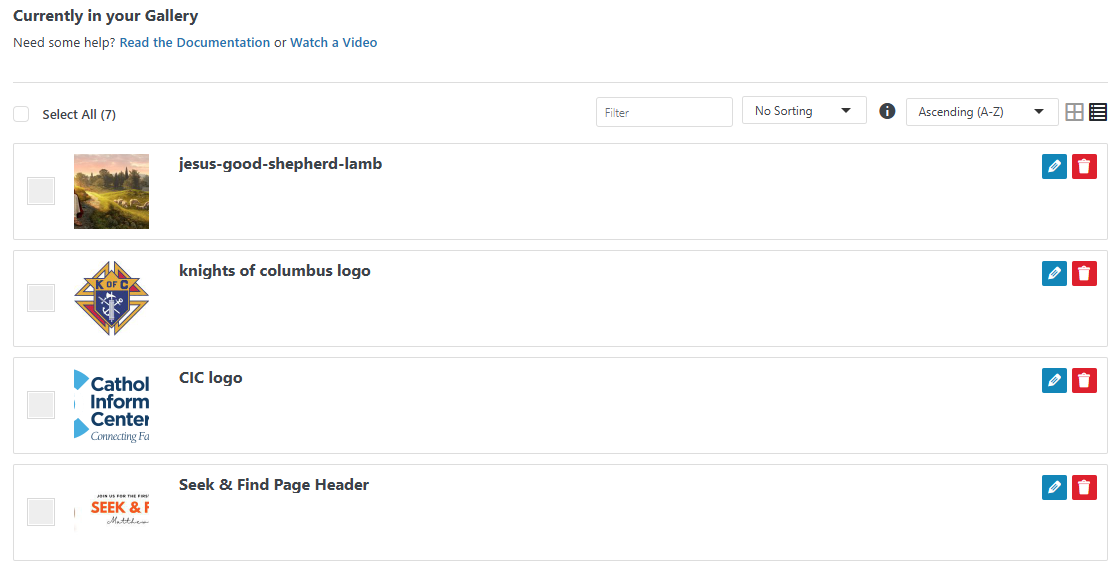
All uploaded images will appear in a list below, where you can drag to reorder, edit, or remove.
Click Publish to save your changes.
Note: Any pages on your site where your gallery was shown will automatically reflect your edits.