How Do I Add a Link to My Pages/Posts?

You can add a link to your pages and posts in a few quick steps. When you are adding content to your pages/posts, you may want to insert a link for more information.
Here is how to add a link to your pages/posts:
- Once logged in, click on Pages or Posts in the menu on the left-hand side of the Dashboard.
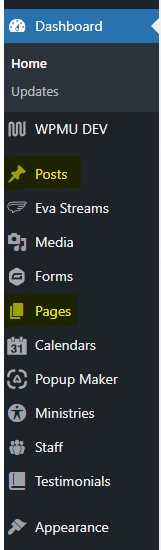
- Click on the page or post you desire to edit.
- Highlight the text you desire to link.
- Click on the
 icon in the toolbar of the block you are editing. This will open a box that allows you to add your URL.
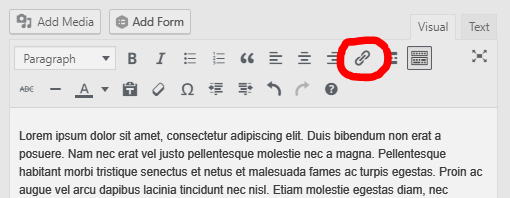
- Paste your URL into this area.
If you are trying to link to a page or post that is already on your website, you may simply begin typing the title of the page/post you desire to link. - If you want the link to open in a new tab, click the toggle (Gutenberg Editor) or the Cog
 (Classic Editor) and check Open in new tab.
 - Click the arrow button (◄┘) to insert your link.
- Click the blue Update or Publish button to save your changes.


To learn how to edit links or make it open in a new tab, click here.
by Cody Armock