Step-by-Step Guide
Guide to Signing Up for Canva Nonprofits
Webinar Video
Recorded March 5, 2026
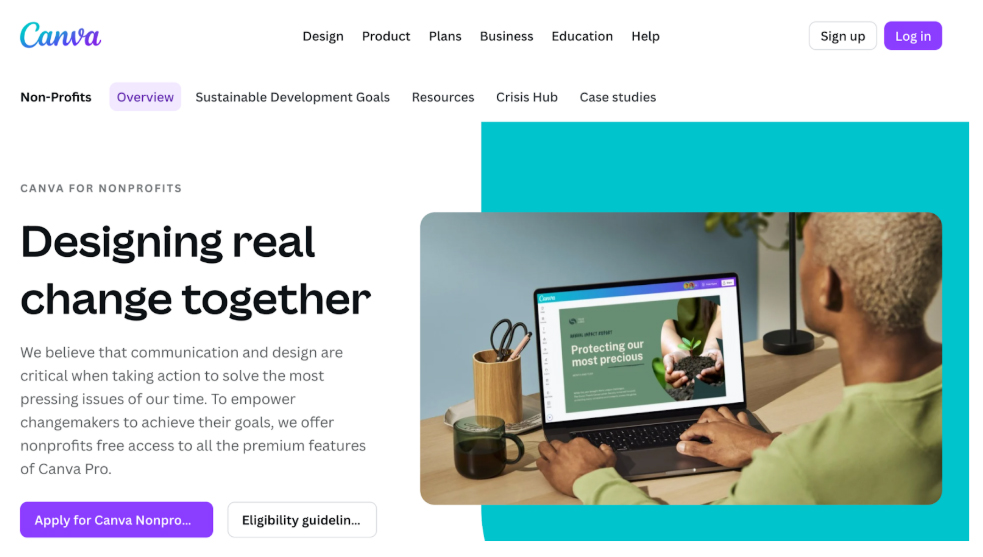
Step 1: Visit the Canva Nonprofits Page and Click “Apply”
Navigate to the Canva Nonprofits page at www.canva.com/canva-for-nonprofits and locate the “Apply for Canva Nonprofits” button. This purple button will direct you to the signup process for nonprofits seeking to access Canva’s premium features at no cost.
Step 2: Choose Email Sign-Up Method
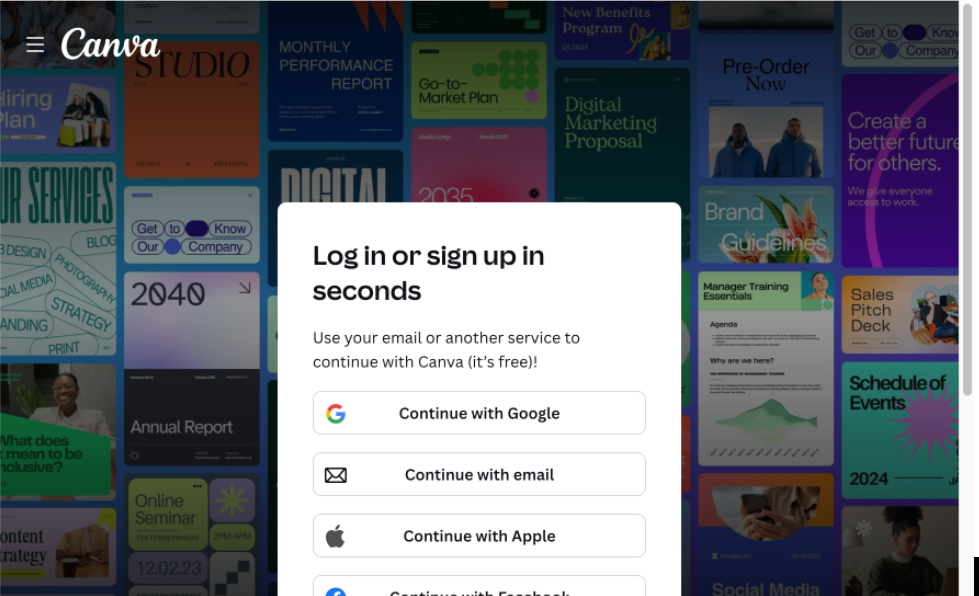
On the sign-up screen, you’ll see multiple options including Google, Apple, Facebook, and email. Click “Continue with email” to proceed with your email-based registration..
Step 3: Enter Your Email Address
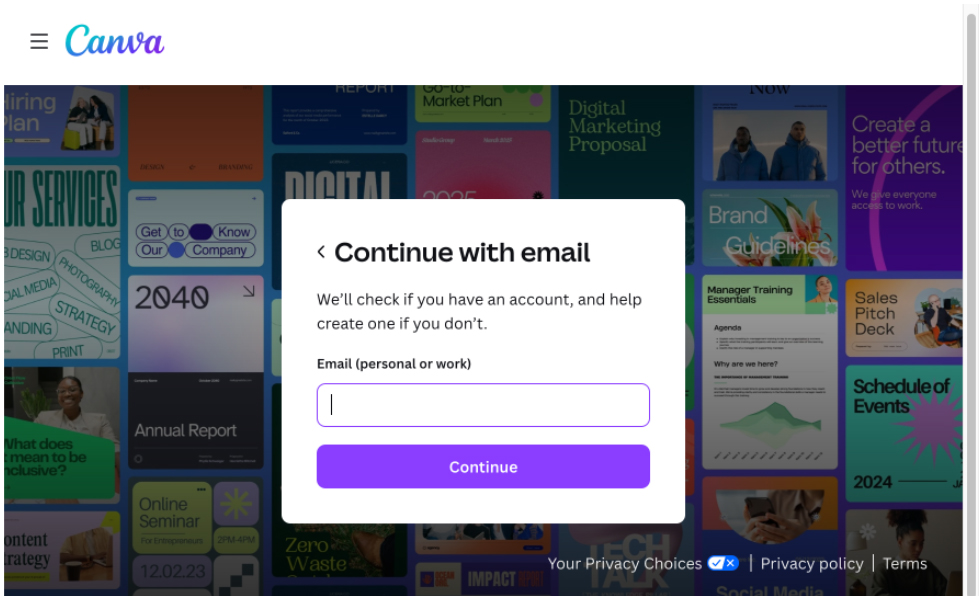
On the “Continue with email” screen, enter your email address in the email field. Click “Continue” to proceed. This email will be used to verify and access your Canva Nonprofits account.
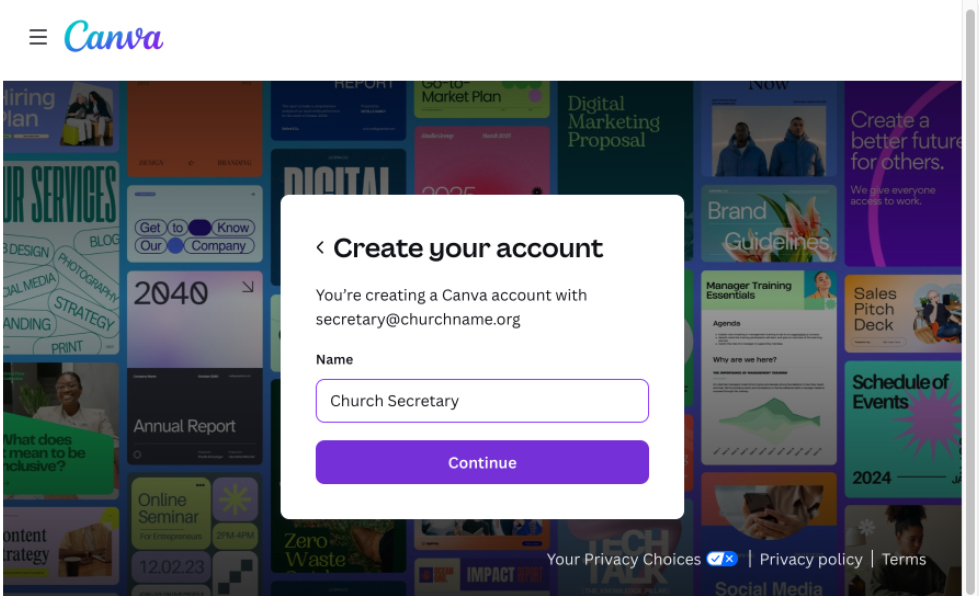
Step 4: Create Your Account – Enter Name
Enter your name in the “Name” field. This name will appear on your Canva account profile. Once entered, click “Continue” to move to the verification step. Please note: The first account that is used is considered the main Canva account. This account/email address can add other accounts to the parish profile.
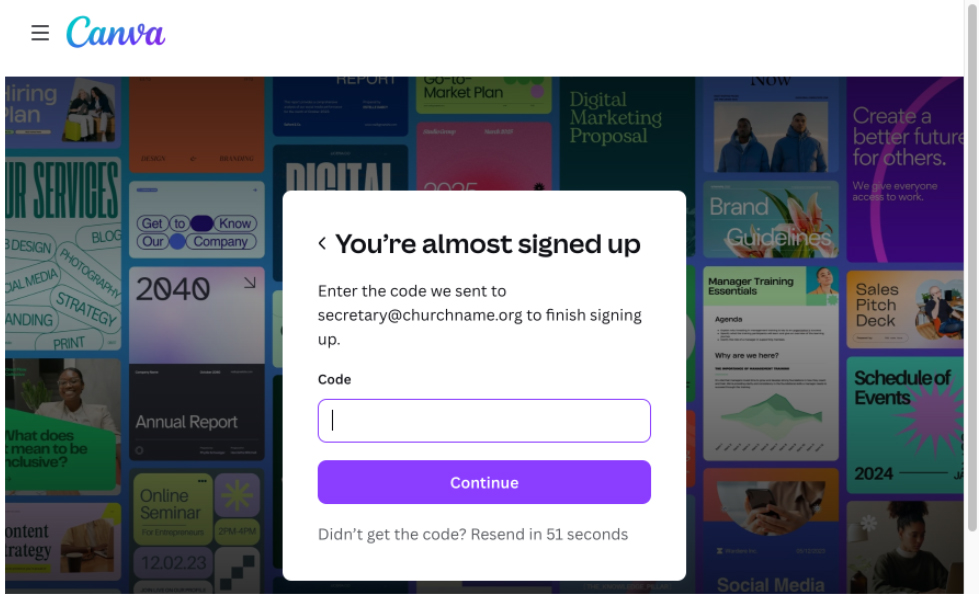
Step 5: Verify Your Email
Canva will send a verification code to your email address. Check your email inbox for this verification code and enter it in the form. Once you enter the correct code and click “Continue,” your email will be verified.
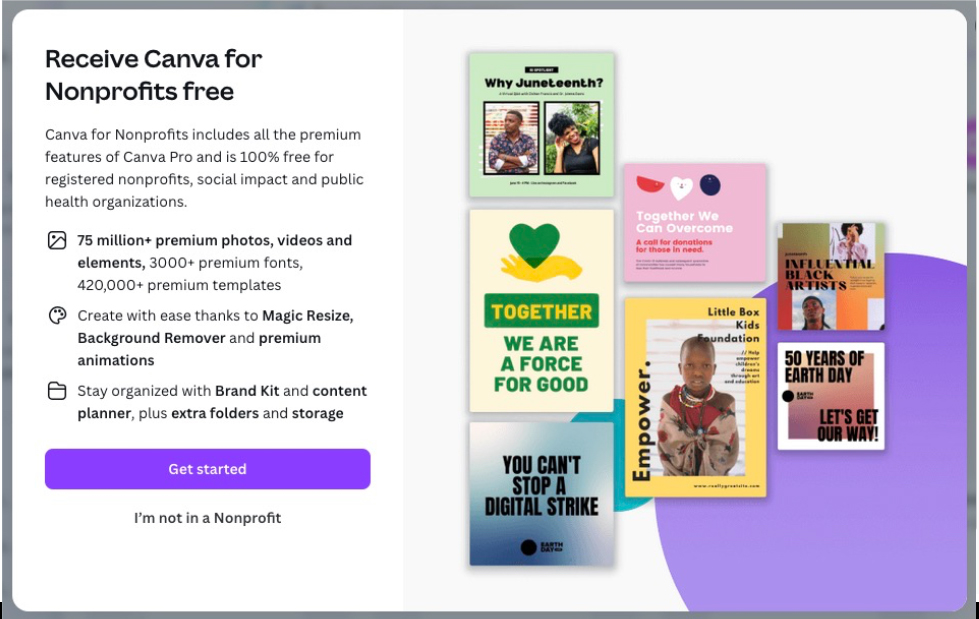
Step 6: Proceed with Application
Click “Get started” to move on to the next step of the application for your free account.
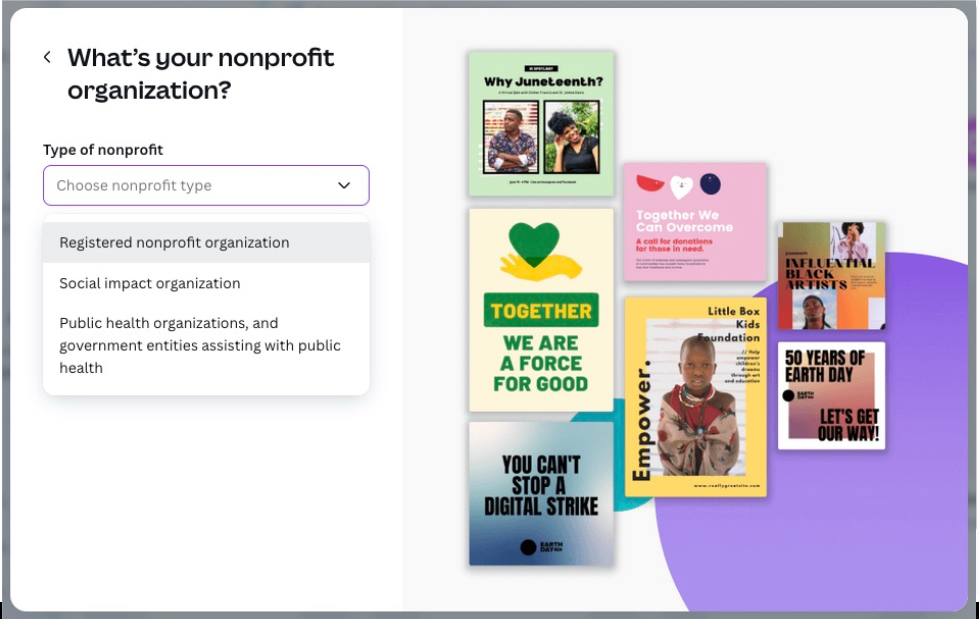
Step 7: Select Organization Type
Select your nonprofit type (Registered nonprofit organization) from the dropdown menu, then click “Continue”.
Step 8: Find Your Organization
The easiest way to find your organization is to enter your 9-digit nonprofit ID. Then click “Continue”.
Please Note: If you search by your tax ID number, and it cannot be found, you then have to click “I can’t find my nonprofit”. Then enter your information.
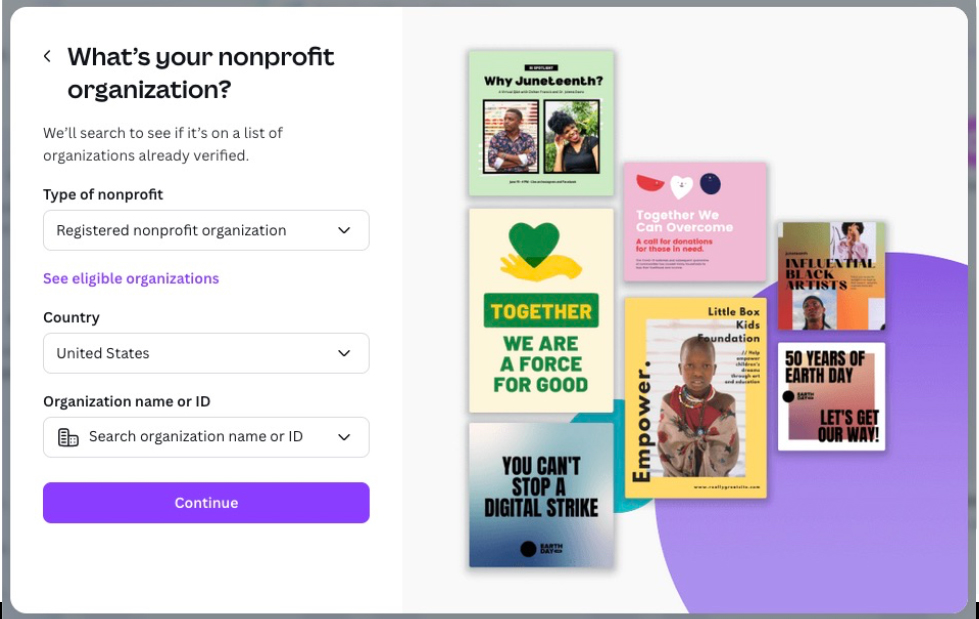
Step 9: Confirm Details
Enter your name and email. Remember to use the parish email address you used to create your Canva account. Click on “Submit”.
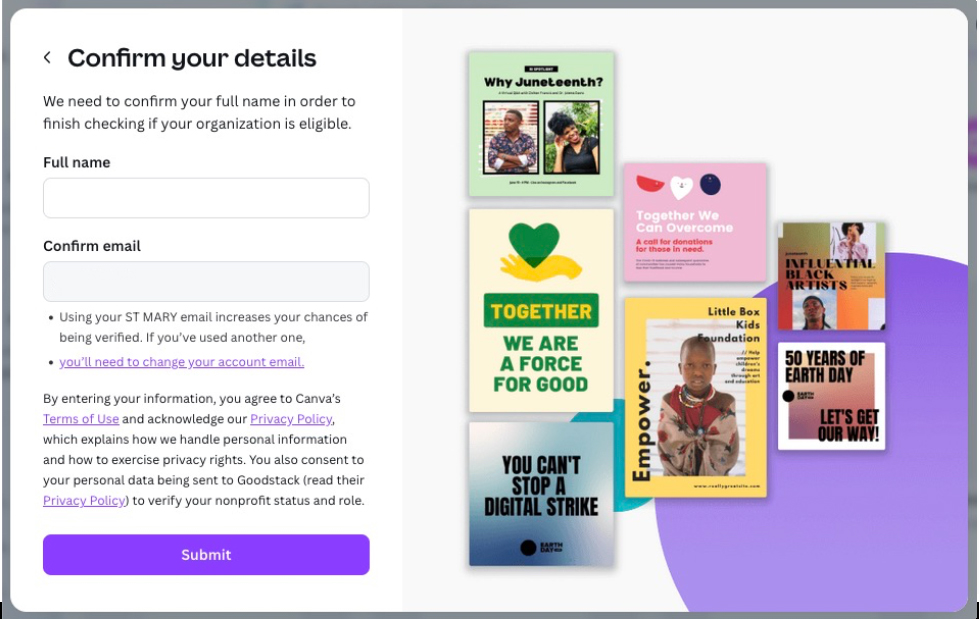
Step 10: Application Review
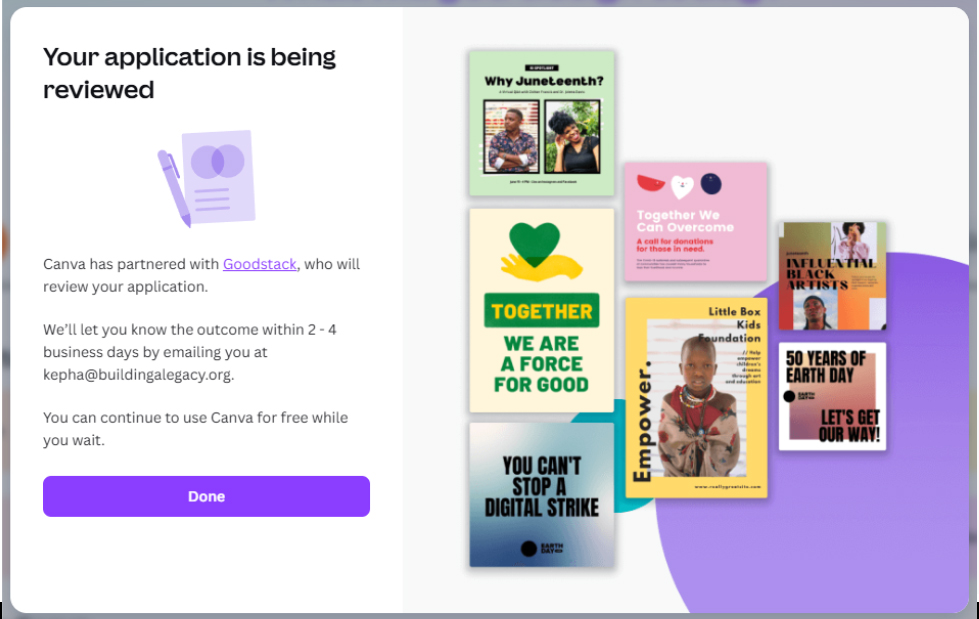
In approximately 1-5 business days, Canva will verify your information and notify you via the email address you used to sign up. In some instances, further information may be required to complete the verification process. If Canva requires more information, they will update you via your signup email address.