To provide the best possible service and resolve your issue efficiently,
a support technician may need to view your computer screen exactly as you
see it. If needed, our support staff will ask you to click the Remote
Assistance button to launch the remote viewer and will guide you step by
step through the simple process of connecting.
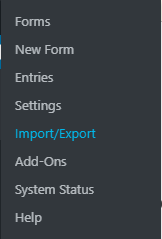
Once logged in, hover over Forms in the menu on the left-hand side of the Dashboard.
Click Import/Export
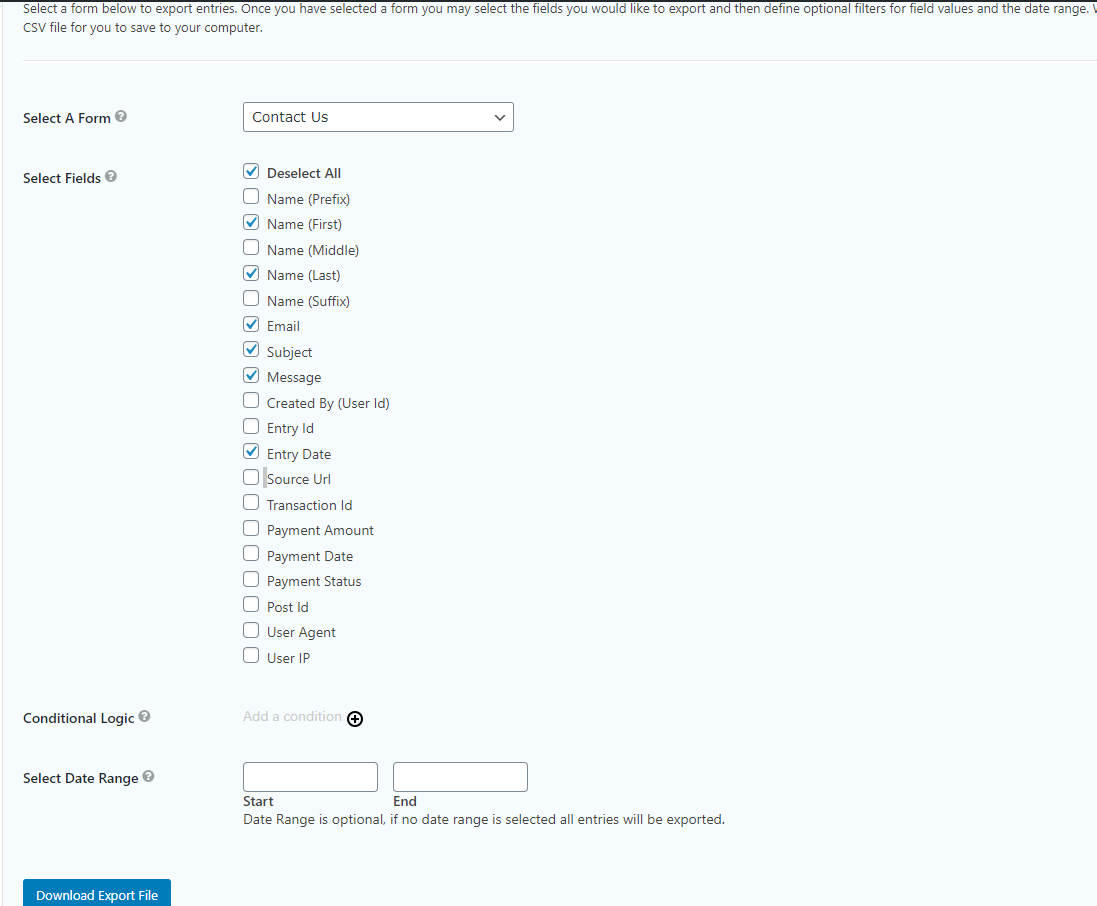
Click the Select A Form dropdown to find the form from which you’d like to export the entries.
Depending on the number of fields in the form, it may be easiest to click the Select All checkbox and then deselect the fields you don’t want or are not asked (specifically the ones below the Entry Date checkbox can all be deselected for the most part)
You can then add any Conditional Logic that you’d like so that only the entries that meet that logic will be exported
You can also select a Date Range so that only entries submitted within that range are exported.
Both Conditional Logic and the Date Range are optional, so they can be used together, separately, or not at all.
Once everything is set, click the Download Export File button and the CSV file will start downloading.
Open this file in Microsoft Excel, Google Sheets, or open via any program that accepts CSV files.