Web Knowledge Base
How Do I Add a YouTube/Vimeo Video to My Page/Post?
You can add a video with ease. Videos can help visitors visualize the topic you are discussing on your website. For many topics, there may be a video that you would like to display on your website. There are two ways to display a YouTube/Vimeo Video to your page or post:
- Pasting Link
- Add Media
Here is how to add a video via pasting a link:
- Go to YouTube/Vimeo and find the video you would like to embed on your page/post.
- Copy the URL for the video by highlighting the URL, right clicking your mouse, and selecting copy. It will begin with “https://www.youtube.com/watch?v=”.
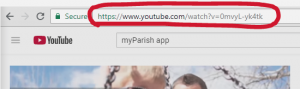
- Go to the page/post you want the video to appear on.
- Add a new Paragraph block where you would like the YouTube/Vimeo video
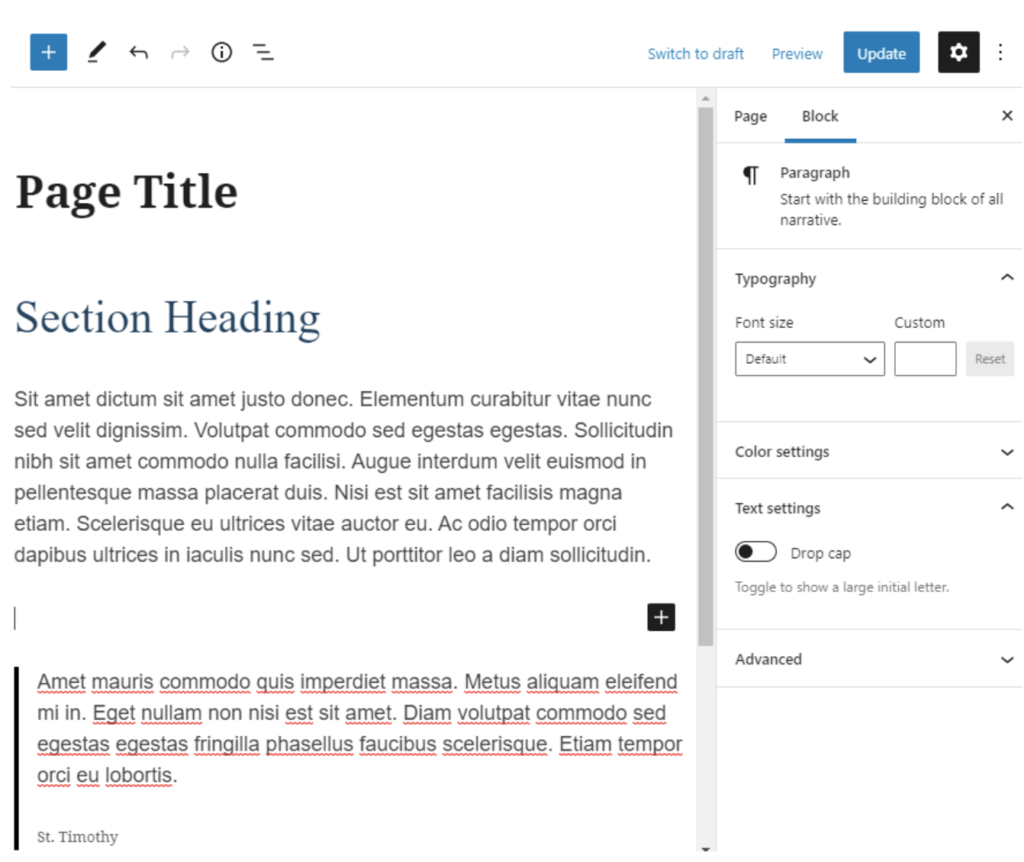
5. Paste in the link by right-clicking your mouse and clicking paste.
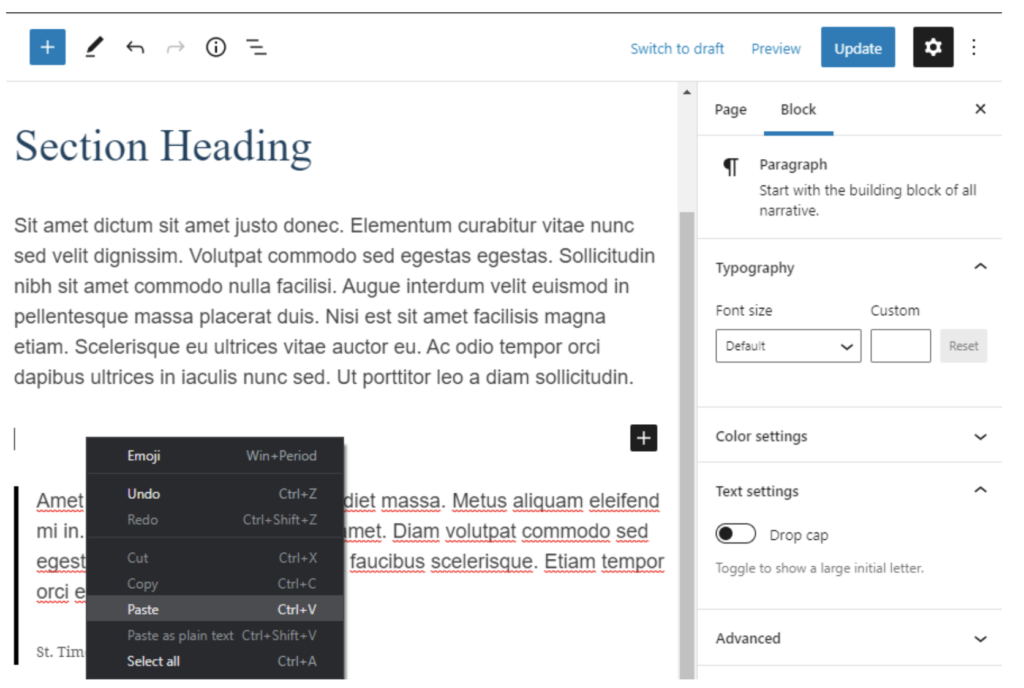
6. The link should automatically load the embedded video.
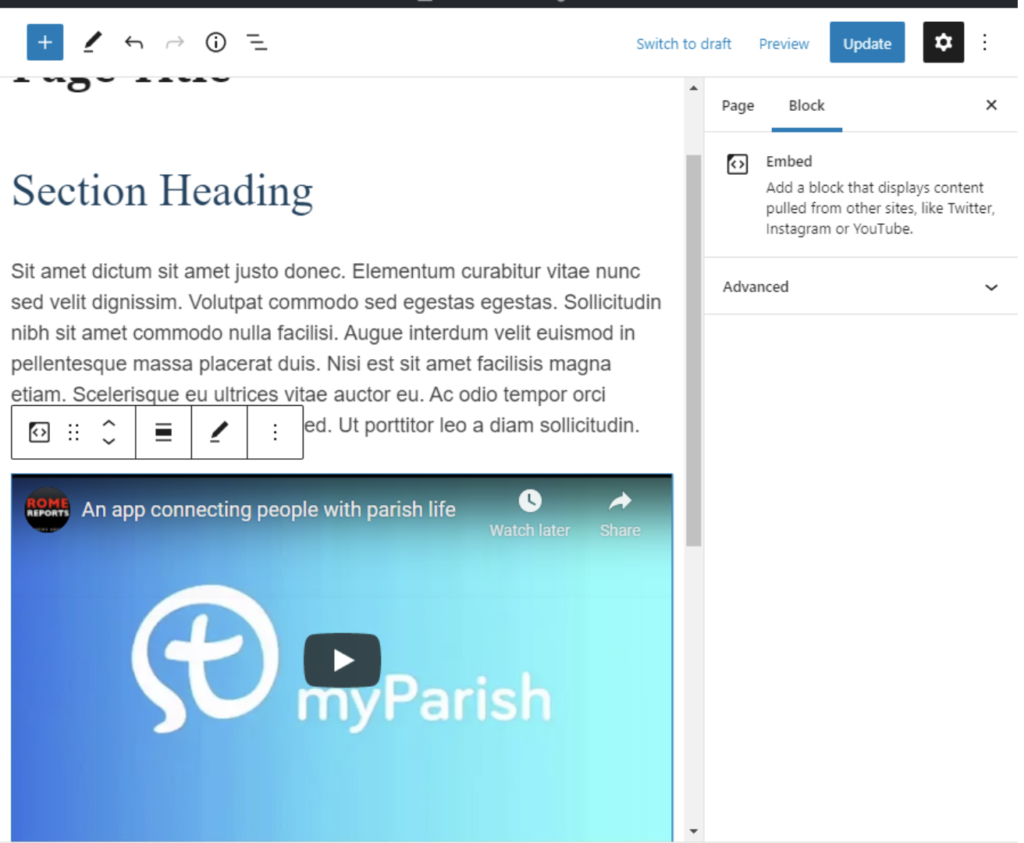
7. Click the blue Update or Publish button to save your changes.

Here is how to add a video via Specific Blocks
- Go to YouTube/Vimeo and find the video you would like to embed on your page/post.
- Copy the URL for the video by highlighting the URL, right clicking your mouse, and selecting copy. It will begin with “https://www.youtube.com/watch?v=”.
- Go to the page/post you want the video to appear on.
- Place the cursor where you want the video to appear.
5. Type “/youtube” or “/vimeo” or search for either “YouTube” or “Vimeo” in the block selector and select the appropriately named block.
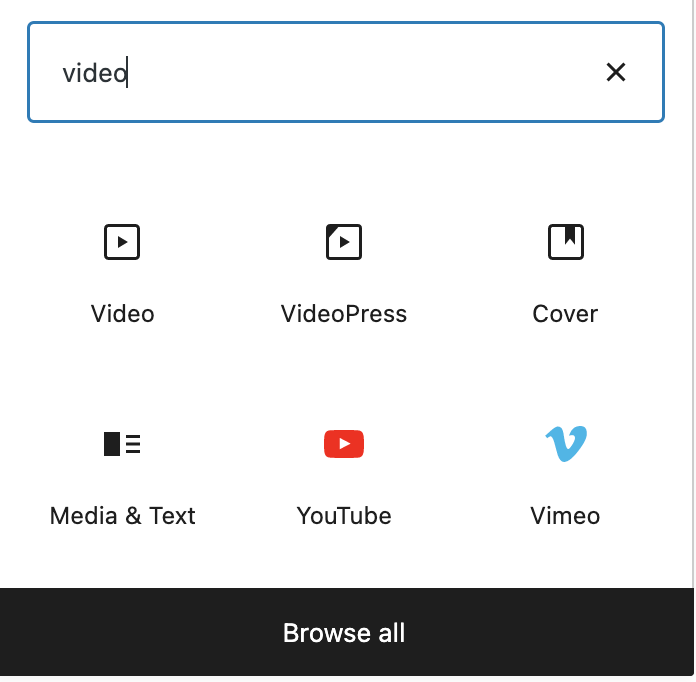
6. Paste in the URL you copied from YouTube by right-clicking your mouse and clicking paste.
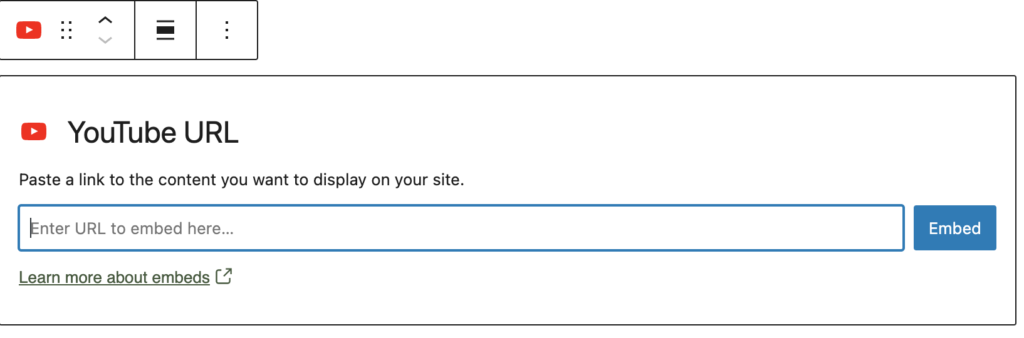
7. Click the Embed button
8. WordPress will automatically load the embedded video.
9.Click the blue Update or Publish button to save your changes.