Web Knowledge Base
How do I Make and Use Reusable Blocks?
With the introduction of the block editor- Gutenberg, editing pages and posts have gotten a lot more customizable with the addition of the drag and drop format, we also saw the addition of a feature called Reusable Blocks. Blocks that we can set specific settings and save them to use elsewhere on our site to create consistency and make it easier on ourselves.
- Once logged in, click on Pages or Posts in the menu on the left-hand side of the Dashboard.

- Click on the page or post you desire to edit.
- Start by adding the type of block or blocks that you wish to reuse and customize them however you’d like, using the block’s toolbar and/or the Sidebar Block Settings. In the below example, I made a Columns block (70/30), with an custom heading, normal paragraph block, another paragraph block with some special formatting, and finally a button in the left column and then just an image centered in the right column. Reusable blocks can be one block or multiple.
4. Once you have finished customizing the block(s) you’d like to use elsewhere, you can then select that block or the highest block in the order. In this case, it is the Columns block.
5. Click on the Options icon  of the Toolbar.
6. Click on the Add to Reusable blocks option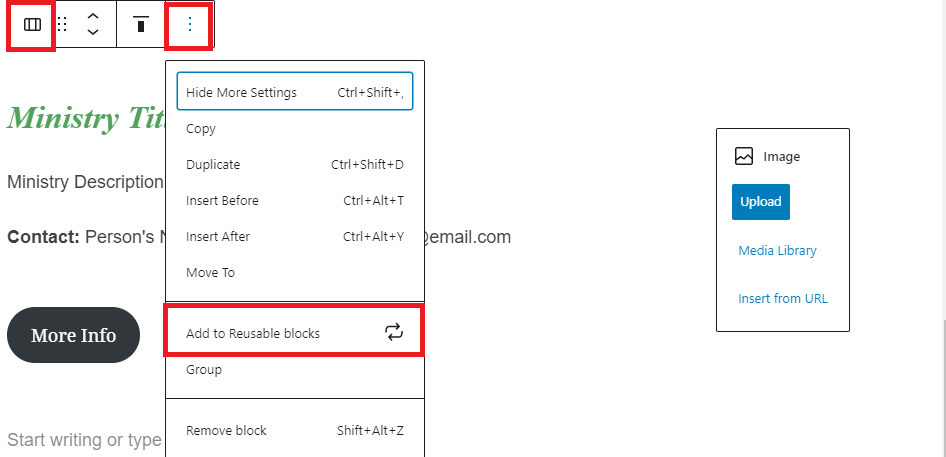
7. Give the block a name and click Save.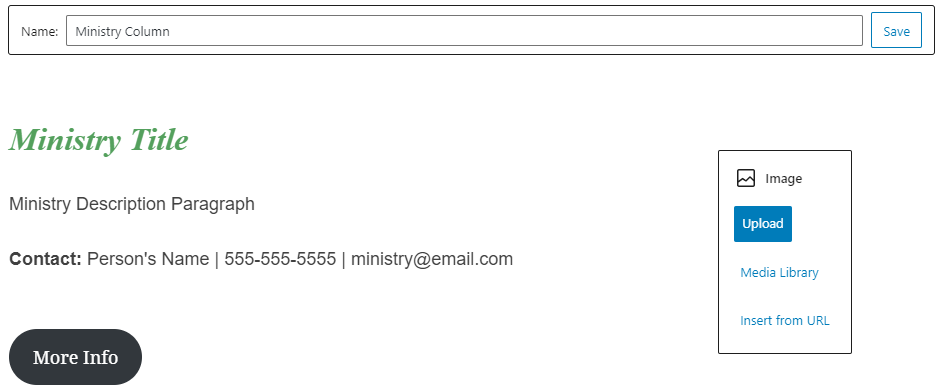
8.You can now add this block anywhere you’d like by adding a block like normal “/[reusable block name]” or searching for its name.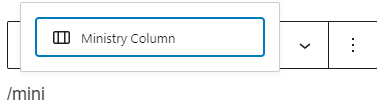
9. To edit the blocks within it (change text and image), you just need to click the Convert to regular blocks option, all the styling will stay the same, but now everything will be editable.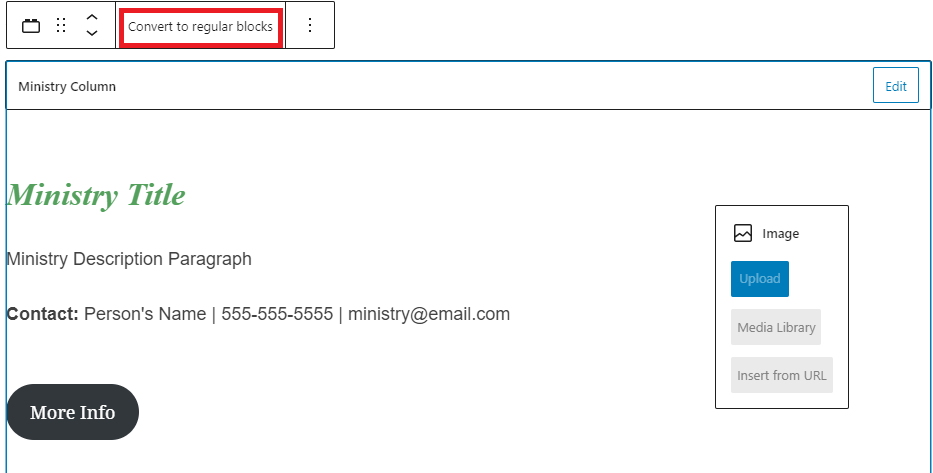 10. You could also just make a staff block or something with the information right there that could be used across the site. Then changing it once will change it everywhere else. Below are the three simple steps on how to save.
- To change something in the Reusable Block, select it and click the Edit button (in the same spot as Save button below) on the top-right of the Block.
- Make the necessary changes, whether that is a content change or it is a styling change
- Click Save in the top-right.
Note: This will only change those reusable blocks that have not been converted to regular blocks.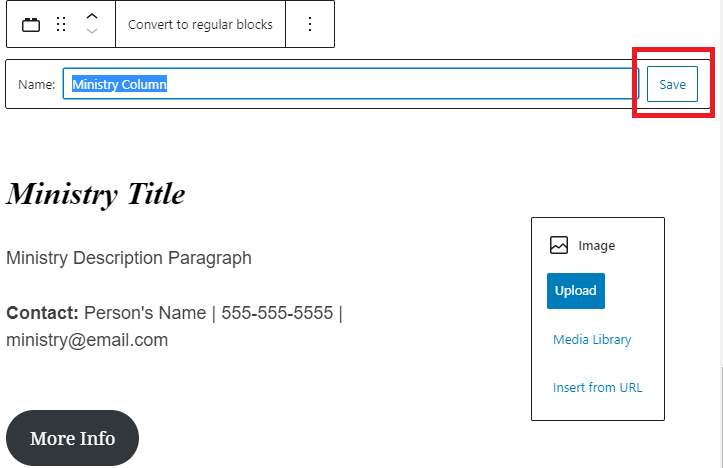
11. Click Publish or Update in the top-right corner.