Skip to main content
Web Knowledge Base
How Do I Change Heading Sizes?
You can change heading sizes quickly and smoothly from your editor page. Headings are important for your website and make a big difference to readability and search engine optimization. They are easy to create and provide a visual hierarchy of the content on a web page to help readers. For example, on a children’s faith formation page, registration and contact are sections that would need their own section headings.
Here is how to change your heading sizes:
- Click on the page or post you desire to edit.
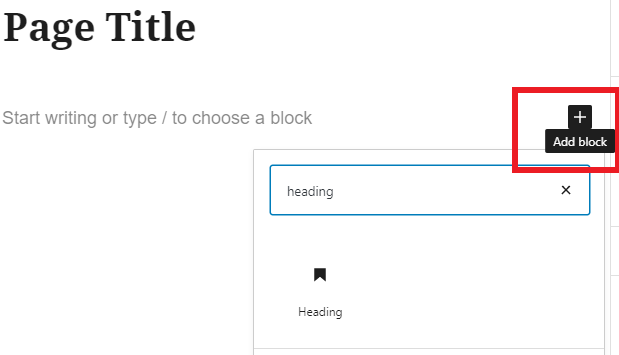
- With Gutenberg, you have two options to create a heading
- Click on your desired heading (default is h2) by clicking on the H2 box and clicking on the new size.
- Heading 1 is typically the size of your page title and should only be used once per page.
- Click the blue Update or Publish button to save your changes.
NOTE: All websites have different heading settings that are dependent on their website’s colors and themes. Be sure to view the page/post you are editing to see how the headings display on your website.