To provide the best possible service and resolve your issue efficiently,
a support technician may need to view your computer screen exactly as you
see it. If needed, our support staff will ask you to click the Remote
Assistance button to launch the remote viewer and will guide you step by
step through the simple process of connecting.
You can add images to your pages or posts quite easily. Adding images is the perfect way to break up walls of text, provide more information, and make your website more visually appealing. In fact, here at Diocesan Web, our most common question is, “How do I add a picture?”
Here is how to add an image to your page/post:
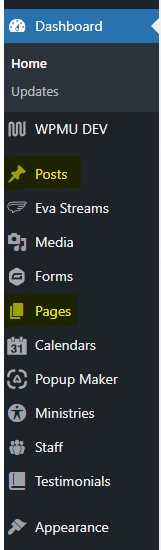
Once logged in, click on Pages or Posts in the menu on the left-hand side of the Dashboard.
Click on the page or post you desire to edit.
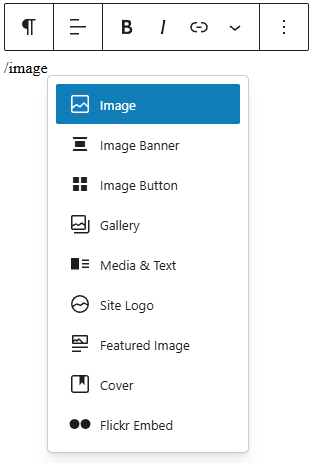
Create a new block and within the new paragraph type “/image” or click the plus button to add an “Image” block.
If you have not already uploaded the image, take this time to upload the image by clicking Upload, otherwise, click Media Library
Locate the image you desire to add and click on it.
Click Select
On the right side of the page and in the toolbar of the Image Block, you will be able to edit the image’s settings after inserting the image. You can change the size, alignment, linking, replace the image, add Alternative Text (great for SEO and accessibility), style, and more.
Click the blue Update or Publish button to save your changes.