To provide the best possible service and resolve your issue efficiently,
a support technician may need to view your computer screen exactly as you
see it. If needed, our support staff will ask you to click the Remote
Assistance button to launch the remote viewer and will guide you step by
step through the simple process of connecting.
You can add a featured image easily. Adding a featured image to your post/page can impact your post/page in a number of ways, depending on the layout of your website. For most websites, the featured image of posts will display on your homepage News and Events area.
Here is how to add a featured image:
Edit the page/post you would like to add the featured image to.
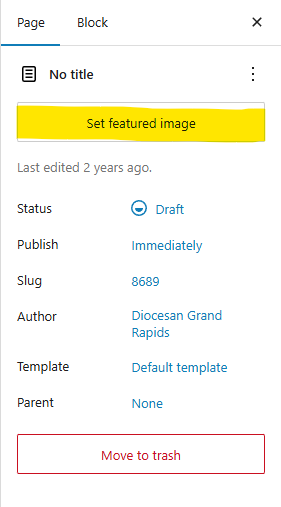
On the right side of the page, there will be a section titled Featured Image.
Click Set featured image.
Click on the image you would like to use as your featured image.
Click Set featured image in the lower righthand corner.
WordPress will set your selected image as the page/post’s featured image and provide you with a preview.
Click the blue Update or Publish button in the top righthand corner to save your changes.