To provide the best possible service and resolve your issue efficiently,
a support technician may need to view your computer screen exactly as you
see it. If needed, our support staff will ask you to click the Remote
Assistance button to launch the remote viewer and will guide you step by
step through the simple process of connecting.
You can create a password-protected page in a few short steps. By default, all of your website’s pages are visible to any visitor, but there may be instances in which you would like a page to be password protected. For example, you may have Safe Environment information specifically for adults and is sensitive, or pages that are specifically for a particular ministry such as meeting minutes or music for the choir for next week’s liturgy.
In these instances, a password-protected page can help you manage who is able to view the page’s information.
Here is how to create a password-protected page:
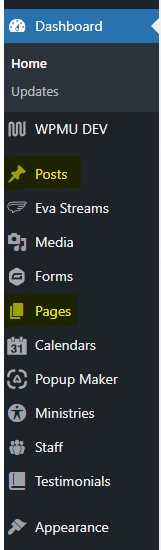
Once logged in, click on Pages or Posts in the menu on the left-hand side of the Dashboard.
Click Add New or click on the page or post you desire to edit.
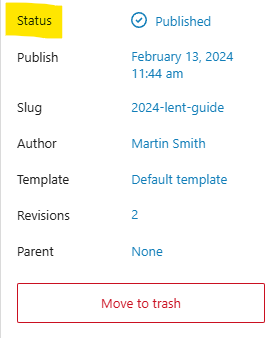
Locate the Status dropdown under the Page/Post Settings sidebar box on the right side of the page.
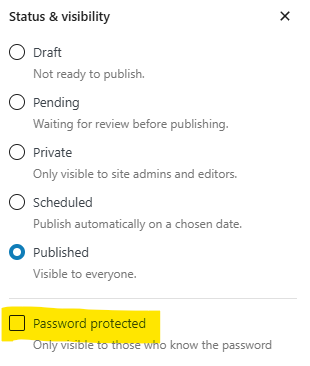
Click Published next to Visibility.
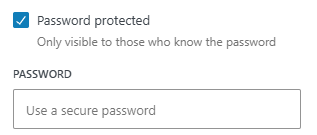
Select Password Protected.
Type in the password you desire. NOTE: This password may be edited at any time.