To provide the best possible service and resolve your issue efficiently,
a support technician may need to view your computer screen exactly as you
see it. If needed, our support staff will ask you to click the Remote
Assistance button to launch the remote viewer and will guide you step by
step through the simple process of connecting.
You can delete a page or post with ease. We know how important it is to be able to remove pages, be it because you accidently duplicated a page, the page is outdated, or maybe it’s just a blank draft. Either way, WordPress makes it easy to delete any page or post.
Deleting while editing
Delete while not editing
Delete in bulk
Here is how to delete a page/post while editing:
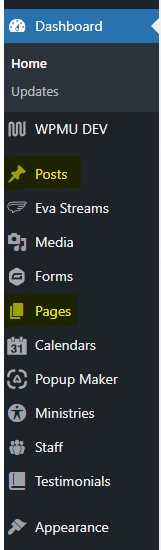
Once logged in, click on Pages or Posts in the menu on the left-hand side of the Dashboard.
Click on the page or post you desire to edit.
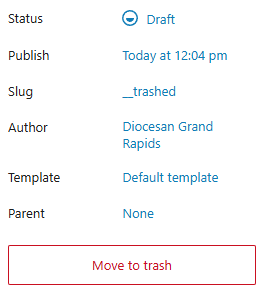
Click Move to Trash in the right-hand sidebar.
Here is how to delete a page/post while NOT editing:
Once logged in, click on Pages or Posts in the menu on the left-hand side of the Dashboard.
Hover over the page you desire to delete and click Trash
Here is how to delete pages/posts in bulk:
Once logged in, click on Pages or Posts in the menu on the left-hand side of the Dashboard.
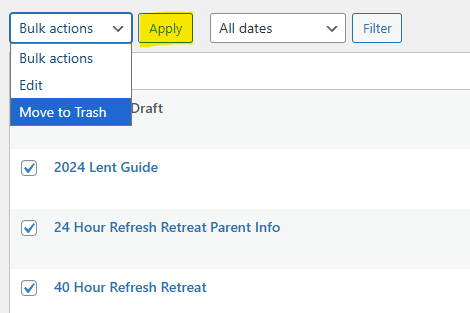
Use the checkboxes to the left of each page/post title to select multiple pages/posts
Using the Bulk Actions dropdown, select Move to Trash and click Apply