To provide the best possible service and resolve your issue efficiently,
a support technician may need to view your computer screen exactly as you
see it. If needed, our support staff will ask you to click the Remote
Assistance button to launch the remote viewer and will guide you step by
step through the simple process of connecting.
You can restore an item from trash by simply following the short easy steps below. There are times where we all make mistakes and click the wrong button or link, and something gets deleted. Do not be afraid (Nolite Timere) for the trash is here. The trash is a special place among Posts, Pages, Envira Gallery, etc. (all except Media Library and Menus) that will store items that are removed but are not deleted permanently.
Here is how to restore an item from trash:
Note: Anything removed from Media Library or Menus is deleted for good and there is no trash. For Media Library, you will have to reupload the item. For menus, it will have to be added back from one of the side panels from the corresponding item type, i.e., Pages, and then added back to the correct location.
Once logged in, go to the place (Posts, Pages, Envira Gallery, Forms, etc.) where the item has been trashed. For this example, we will say that it was a page that was trashed.
Once in you are viewing the list of All Pages
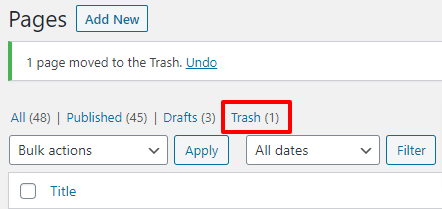
Look for the Trash filter above the list of All Pages
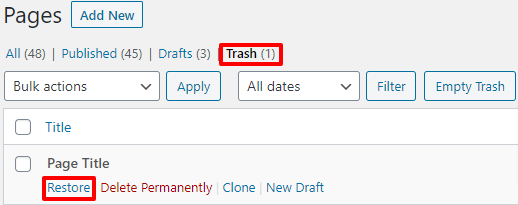
Find the item that you wish to Restore, hover over it, and Click Restore
Click the All filter at the top to go back to All Pages and find your restored page in the list (it will be a draft).
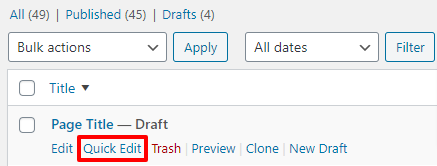
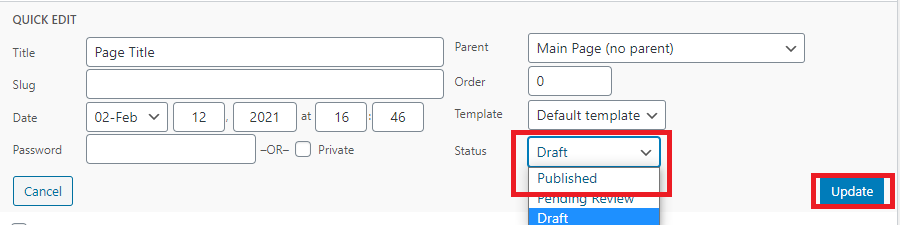
To Publish it once again, Hover over the item and click Quick Edit
Locate the Status option, click the dropdown that says Draft and change it to Published and click the blue Update button
The Page will now be live again.
If you trashed the Homepage, you will need to contact Diocesan for more assistance.