To provide the best possible service and resolve your issue efficiently,
a support technician may need to view your computer screen exactly as you
see it. If needed, our support staff will ask you to click the Remote
Assistance button to launch the remote viewer and will guide you step by
step through the simple process of connecting.
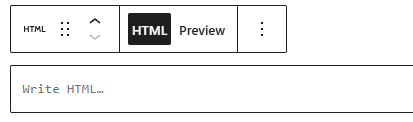
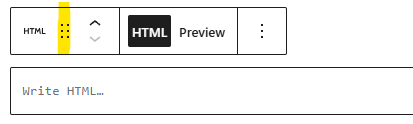
You can embed an iFrame on your website in just a few short steps. An inline frame (iframe for short) is used to embed another document within your own page or post. In most situations, you will use an iframe when instructed to do so by a third party. Common uses include pre-built forms and payment or online giving buttons.