Web Knowledge Base
How to Edit an Image Within WordPress?

Not all website editors have access to Adobe Photoshop or Adobe InDesign, which is why WordPress comes with an image editor.
Here is how to edit an image within WordPress:
Crop
- To crop the image, first click on the image and drag to make your selection.
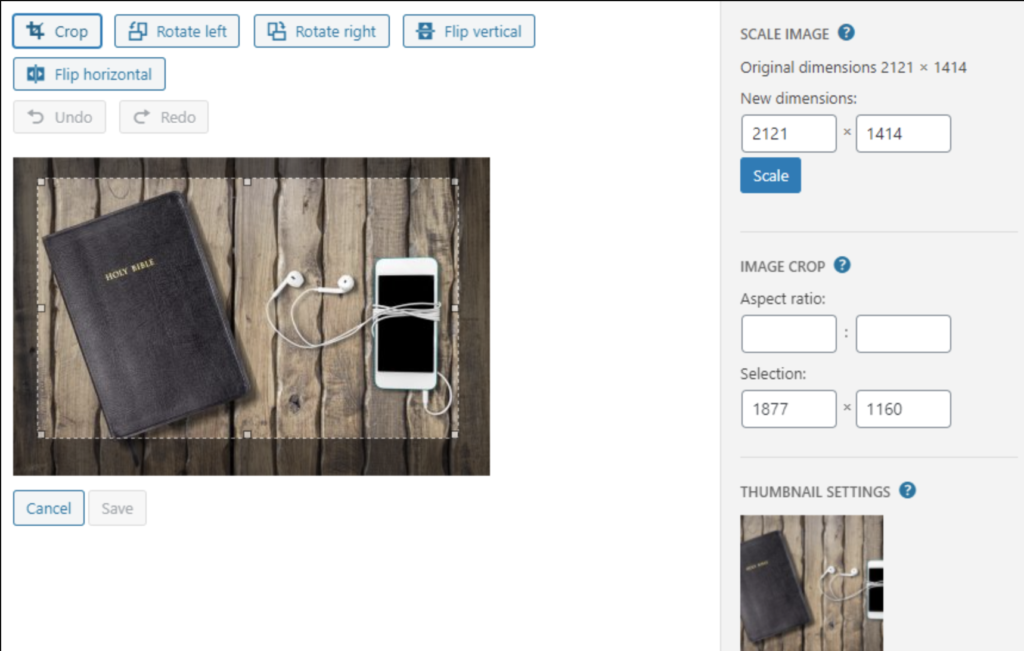
2. Once a selection has been made, then click the crop icon above the image to finalize the crop.

(You can use the Crop Aspect ratio and Selection option to make further adjustments to fine-tune your crop selection before clicking the crop icon.)
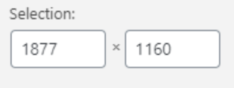
Crop Selection
The selection can be adjusted by entering new values (in pixels). Note that these values are scaled to approximately match the original image dimensions.
Rotate Left
Rotate the image 90 degrees left

Rotate Right
Rotate the image 90 degrees clockwise.

Flip vertically
Flip the image upside-down.

Flip horizontally
Flip the image left-to-right.

Undo/Redo
Remove or restore your last edit. You can click as many times as you want in succession to “step” through the edit history.

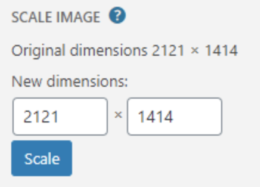
Scale Image
- Proportionally scale the original image. For best results, scaling should be done before you crop, flip, or rotate. Images can only be scaled down, not up. The original dimensions are displayed as a guideline above the box for entering new dimensions.
- Click Scale button to display the new scaled image.
Restore Original Image
- If changes have been made to an image, the Cancel Editing button allows you to discard any changes and restore the original image. Previously edited copies of the image will not be deleted.

Save Edits
- Be sure to Save your edits by clicking the Save Edits button.

All text descriptions were taken from https://codex.wordpress.org/Edit_Media with some minor updating