To provide the best possible service and resolve your issue efficiently,
a support technician may need to view your computer screen exactly as you
see it. If needed, our support staff will ask you to click the Remote
Assistance button to launch the remote viewer and will guide you step by
step through the simple process of connecting.
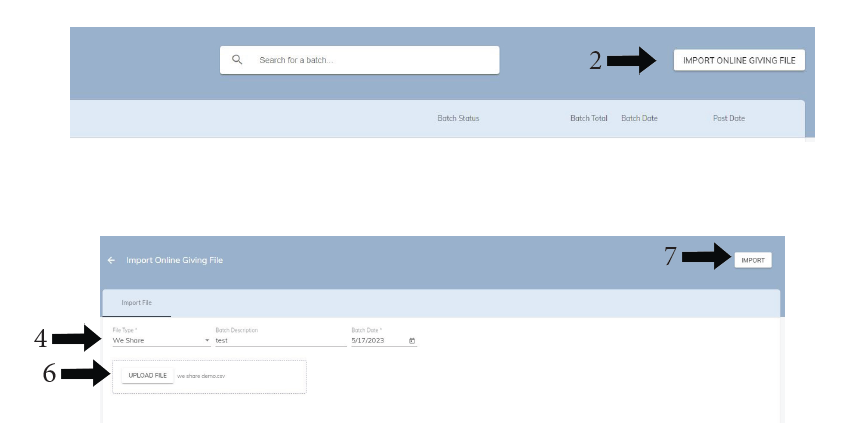
Add a description if you would like, and enter a batch date
Select a Start Date and End Date
Either import all funds or uncheck the import all funds checkbox and choose the funds to import
Click IMPORT in the top right
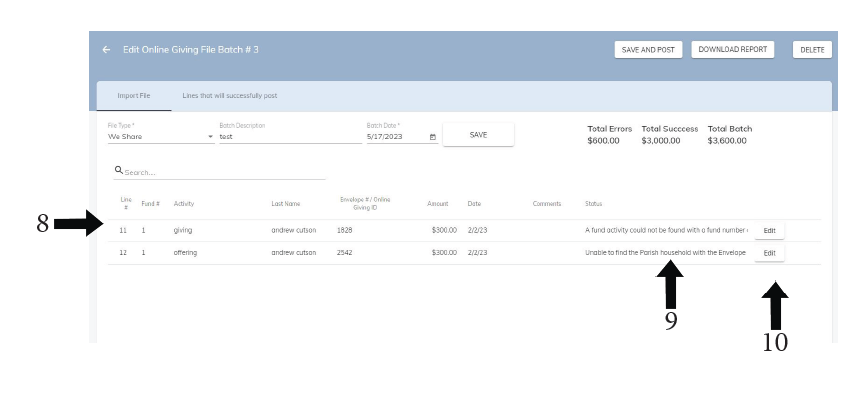
If there are import errors they will appear under the Import File tab
The list of errors will appear in the status column
Click the edit button on the far right of the transaction with an error. The reason for the error will be listed and then you can make the adjustment and then save the entry
After all errors are fixed, all of the entries will appear without an error message