To provide the best possible service and resolve your issue efficiently,
a support technician may need to view your computer screen exactly as you
see it. If needed, our support staff will ask you to click the Remote
Assistance button to launch the remote viewer and will guide you step by
step through the simple process of connecting.
You can add a link to your menu quite easily. When creating your menu, it is entirely up to you what items you would like to display. Many times, parishes will create links to giving pages, off-site organizations, and diocese sites.
Here is how to add links to your menu:
Once logged in, hover over Appearance in the menu on the left-hand side of the Dashboard, select the Menus option to bring up the Menu Editor.
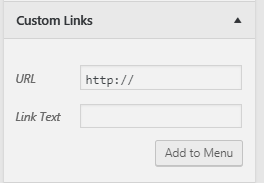
Locate the panel on the left titled Custom Links.
Click on Custom Links to open the Custom Link Editor.
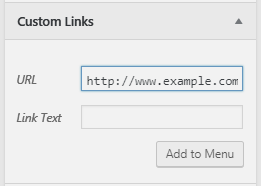
Type or paste in the URL (http://www.example.com) of the desired external link in the URL box.
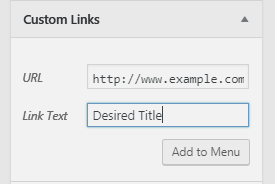
Type in the desired Title you would like the Menu Item to be titled in the Link Title box.
Once finished click the Add to Menu button.
The menu item will appear at the bottom of the menu list on the right and you are free to move it to your desired location. To learn more about how to reorder menu items, click here.
Click the blue Save Menu button to save your changes.