To provide the best possible service and resolve your issue efficiently,
a support technician may need to view your computer screen exactly as you
see it. If needed, our support staff will ask you to click the Remote
Assistance button to launch the remote viewer and will guide you step by
step through the simple process of connecting.
On the Household Module, click on the “Add New Household” button in the top right.
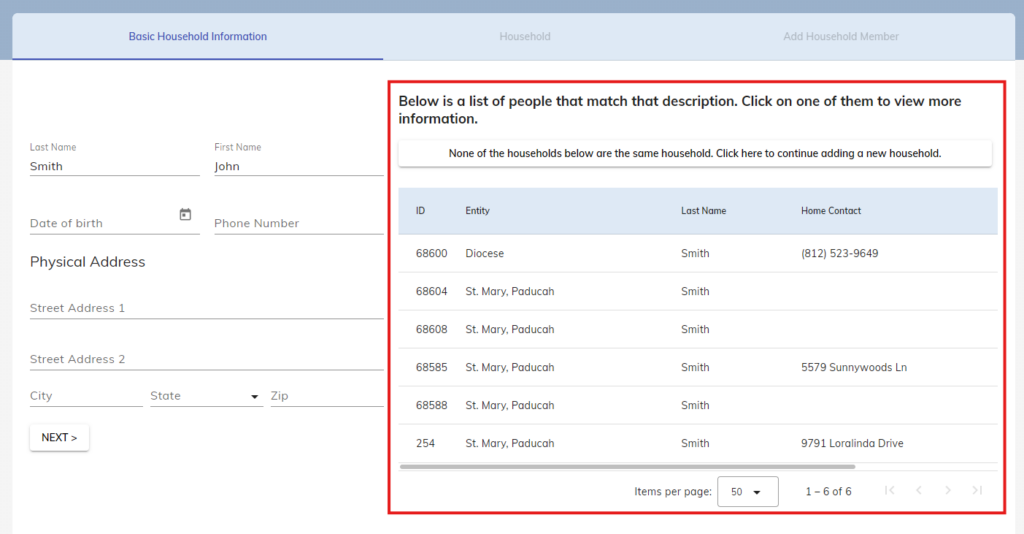
Enter basic household information, then click Next. Lastly, click on the continue button. Only First and Last Name are required.
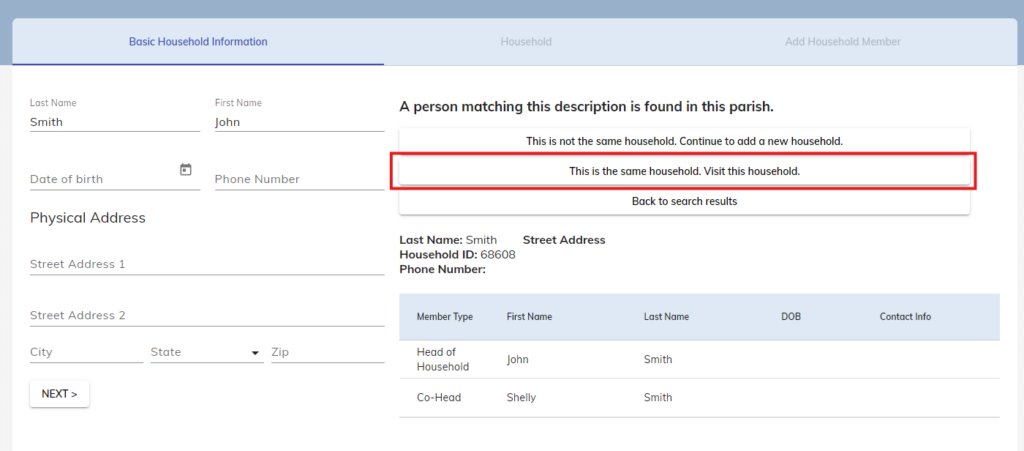
IMPORTANT: Occasionally, a table will appear on the right side that displays potential existing households in Camino within the diocese. Click and review these options to avoid adding a duplicate household.
If it’s the household you want to add, select the middle option. Otherwise, either return to the results using the bottom option or select the top continue option.
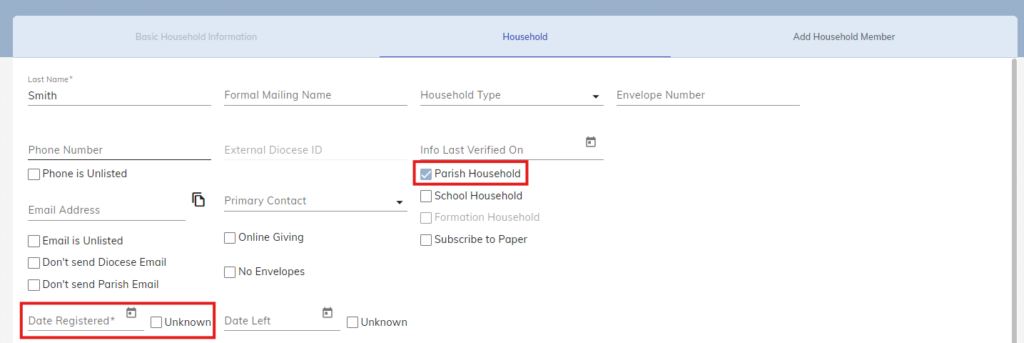
Fill in the household’s information. Only the date registered is required. You may also mark Unknown. Also note the Parish Household box. This is automatically checked when adding a new household. Uncheck this box when adding a non-parish household.
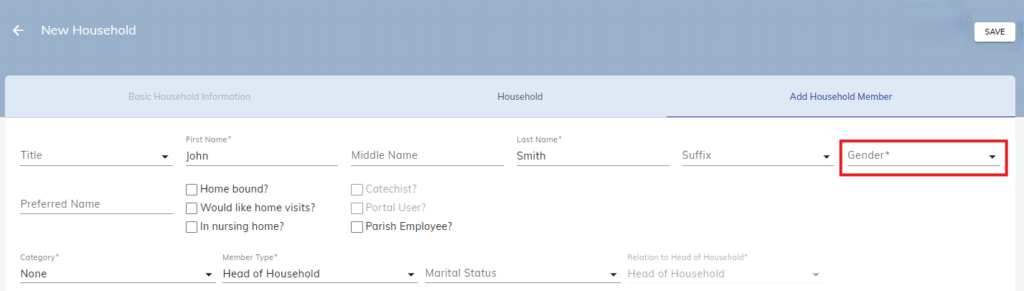
Fill in the head of household information. Then click Save. Only the gender is required.
Errors are highlighted in red. Fix those errors and click Save again.
Adding a Member
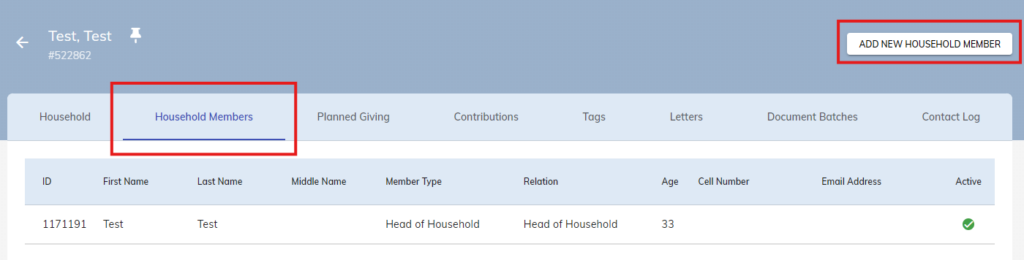
On the Household Module, click on the “Add New Household” button in the top right.
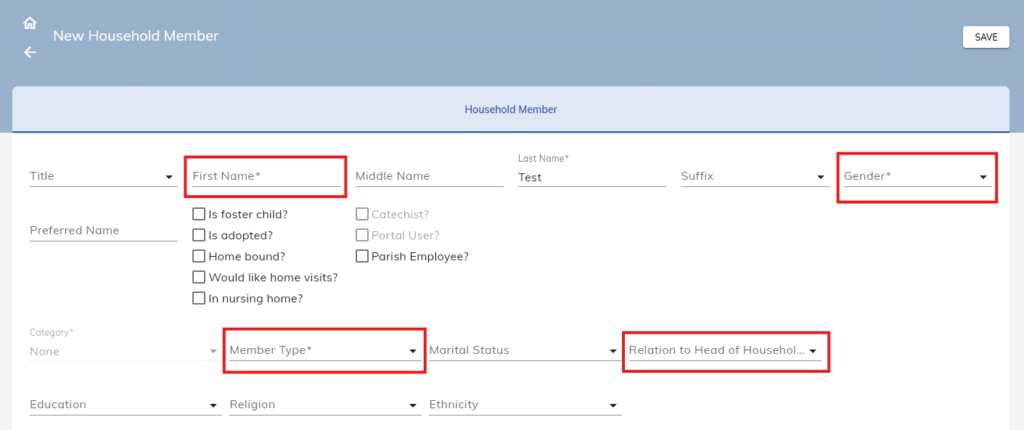
Fill in the member’s information. Then click Save. Only the First Name, Gender, Member Type, and Relation to Head of Household are required.
Errors are highlighted in red. Fix those errors and click Save again.