To provide the best possible service and resolve your issue efficiently,
a support technician may need to view your computer screen exactly as you
see it. If needed, our support staff will ask you to click the Remote
Assistance button to launch the remote viewer and will guide you step by
step through the simple process of connecting.
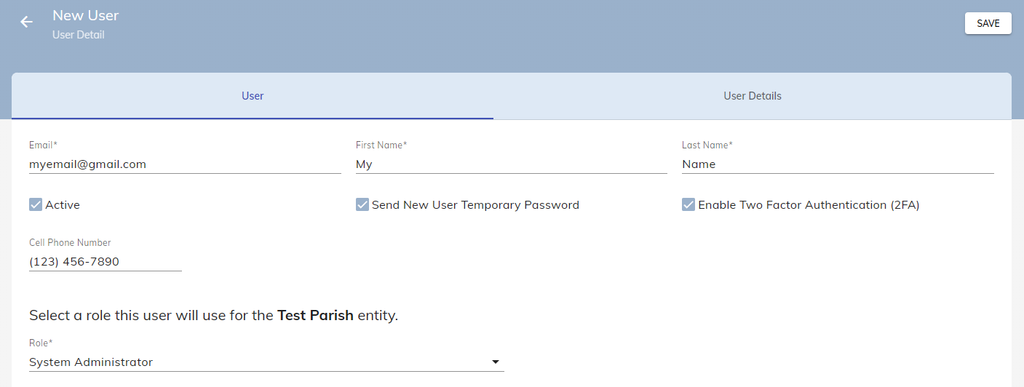
Go to Administration → Users and Roles → Users and click Add New User in the top right.
Enter new users Email, First Name, and Last Name and Role in Camino.
Note: If you want to enable Two-Factor Authentication (2FA), make sure to also add in a cell phone number as well for the user. This is important when resetting the password for a user as 2FA requires a phone number to reset a password.
Click SAVE in the top right corner.
The new user will receive a password reset email. The email will contain a temporary password as well as a link directly to your parish’s Camino database for them to sign-in.
Note: This email may occasionally appear in their Spam or Junk folder, so check there as well! If they are not receiving the email, please contact the Camino Support Team.