Camino
Documents Walk Through
Creating a Mail Merge Document
You are able to upload Mail Merge Documents that pull information from a Camino report onto a Word Document for you to print out. This walkthrough will show you how to add Merge Fields to a Word Document template and how to upload that template onto Camino. In this walk through, we will be creating a Welcome Letter Document for all newly registered families in our parish.
This will continue off of the Newly Registered Parish Families report created in the Report Walk Through found here: https://diocesan.com/docs-camino/getting-started/reports-walk-through/
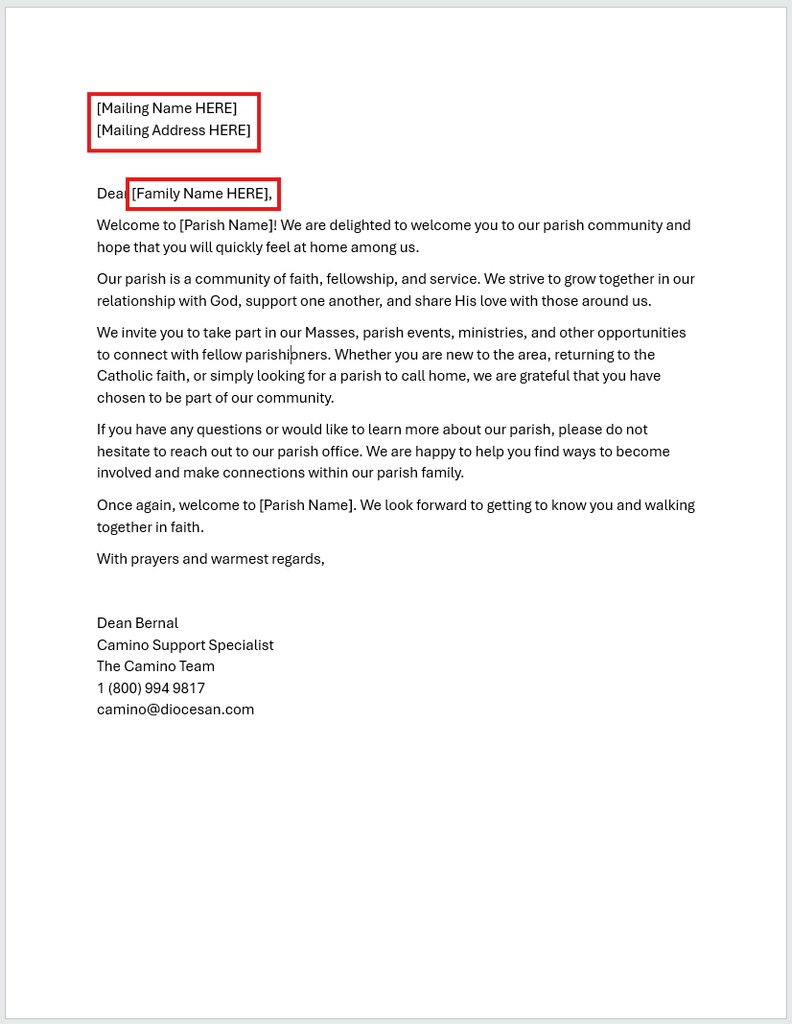
On the left is our plain Welcome Letter Document that we want to upload to our report. Boxed in red is all the information that we want our document to grab from Camino.
In order to grab that information, we need to add Merge Fields. To add a Merge Field to a Word Document, go to Insert → Quick Parts → Field.
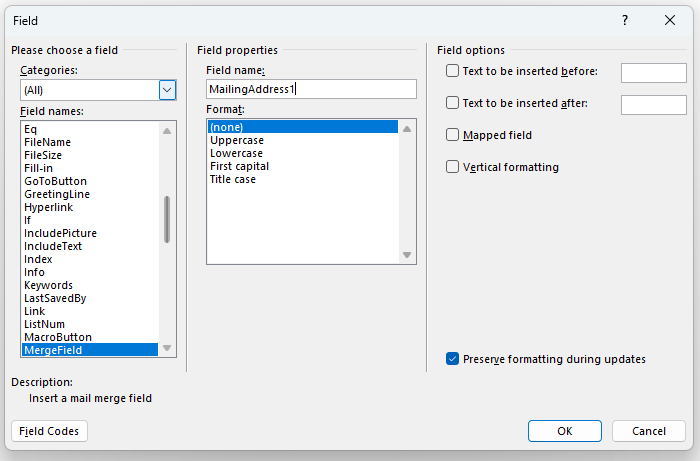
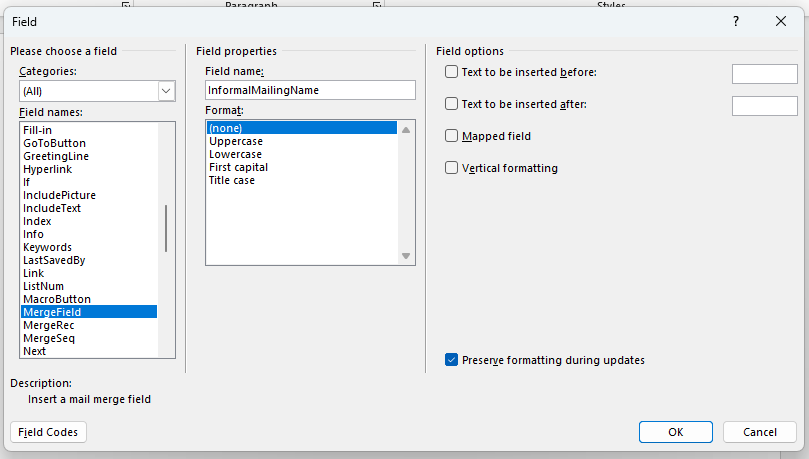
After clicking Field, you will see this new pop-up:
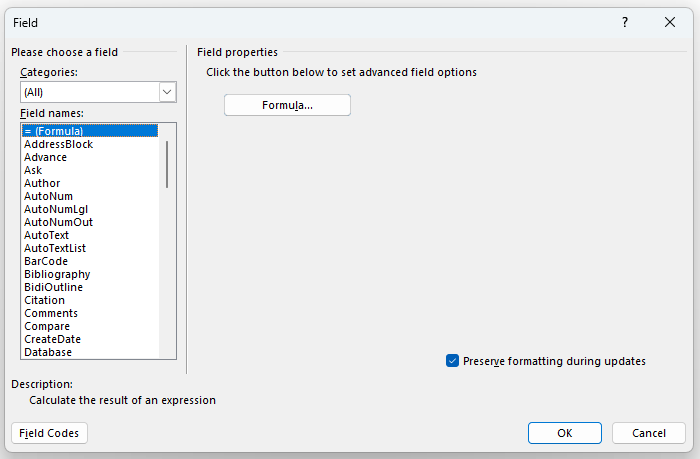
On this pop-up, under Field Names, scroll until you find MergeField. Select that option. After doing so, you can then add a Field Name. This is the information that we want to pull from Camino. The name placed here is very specific, and is based on the names of Fields in Camino. To find the list of Field Names in Camino, navigate to the Fields tab on the report, search for the field you want to add (in this case Mailing Address).
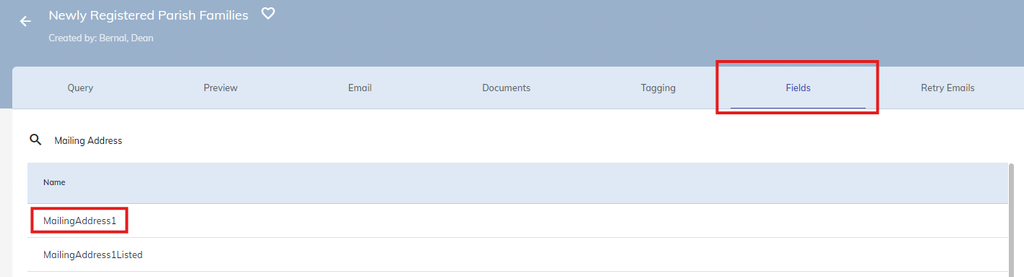
Copy+Paste the name of the Field as it appears in Camino onto the Field Name box of the pop-up screen in the Word Document.
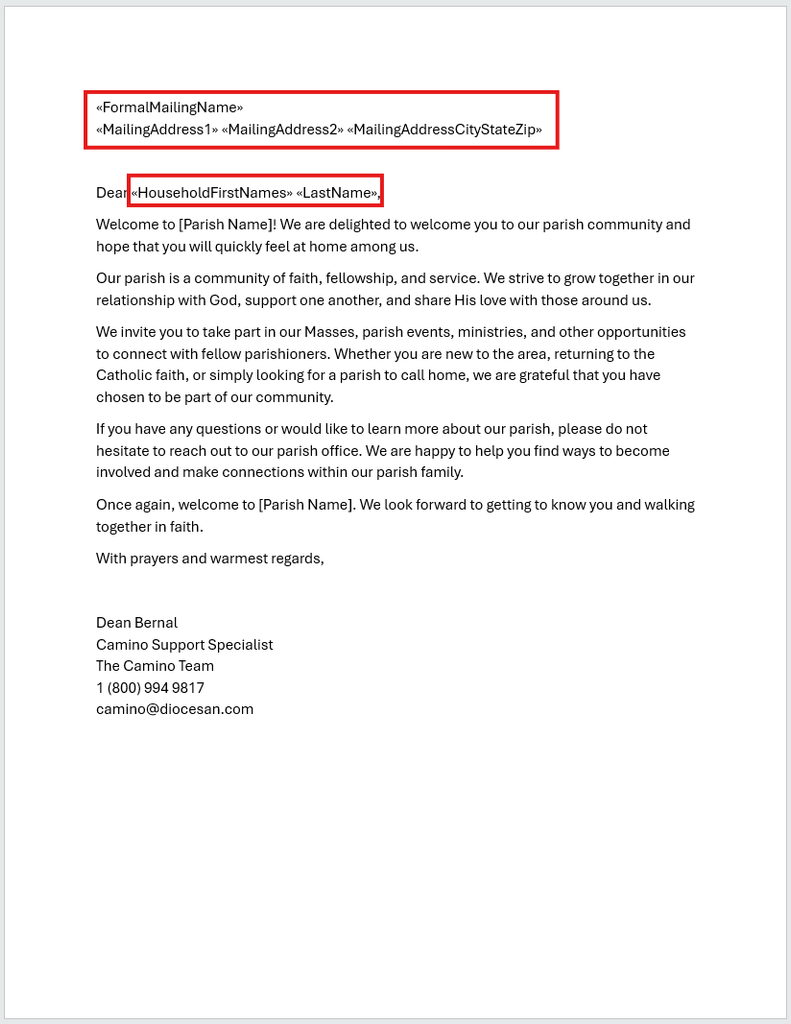
Once the Field Name is added, press OK. It will then be added to the Word Document. Repeat this process with the rest of the rest of the information that we want our Word Document to pull into Camino.
After all Merge Fields have been added, our Word Document should now look like the left image.
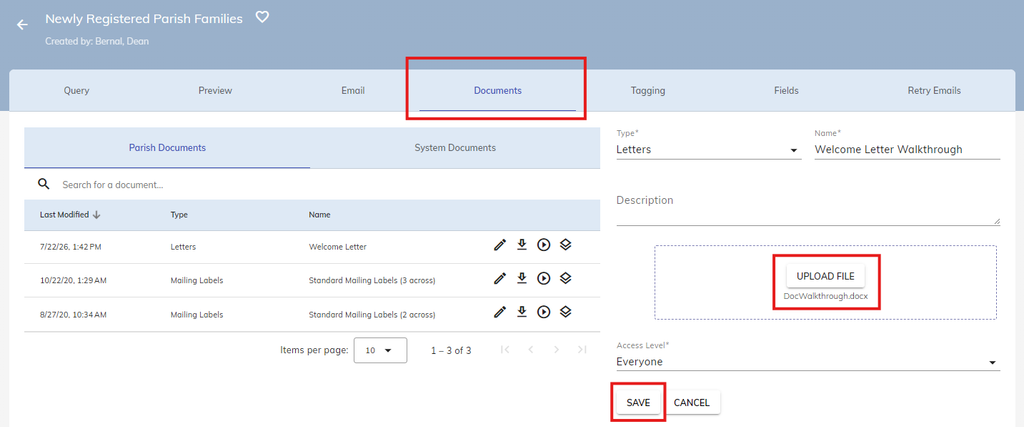
With the Word Document now created, navigate to Documents → Parish Documents → Add New Document on Camino. Click on Upload File to upload the Word Document to Camino, select the type of document we are uploading, the name of the document, and the Access Level for the document. Then press Save.
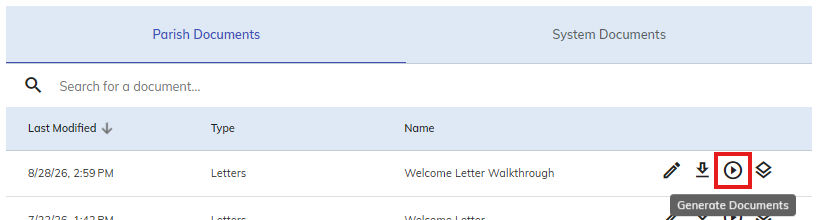
Once the Word Document is now in the system, press the Play Button that says Generate Documents to create a welcome letter for all households being pulled in the report!
Modifying an Existing Template
If there is an existing document whose template you want to modify:
- Press the Downward Arrow Icon that says Download to download the template of that word document.
- Make any changes that you need to that document, and save those changes.
- Press the Pencil Icon that says Edit on Camino.
- Click on Upload File to upload the new version of that document.
- Press Update.
Modifying an Existing Mail Merge
While modifying an existing template, there may be occasions where we want to change a Merge Field.
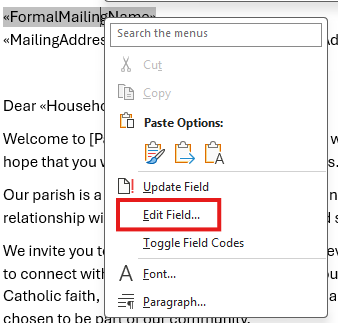
- Right-Click the Merge Field you want to edit.
- Click the Edit Field option.
- Copy the Field on Camino and Paste it onto the Field Name on the pop-up as you would when normally adding in a Merge Field.
- Click OK.
The Merge Field will then update with the new Field that you’ve given it. Follow the Modifying an Existing Template steps to upload this new version to Camino.
