Camino
Creating a Batch Contribution
Starting a New Batch
- Using the left menu, go to Contributions → Batch Contributions, then click on the Add New Batch button on the top right of your screen.
- Enter the Date you are completing the batch and an accurate Description (i.e., Sunday Offertory) for the batch. Press the Save button. This will update your screen and you can start entering contributions for the batch.
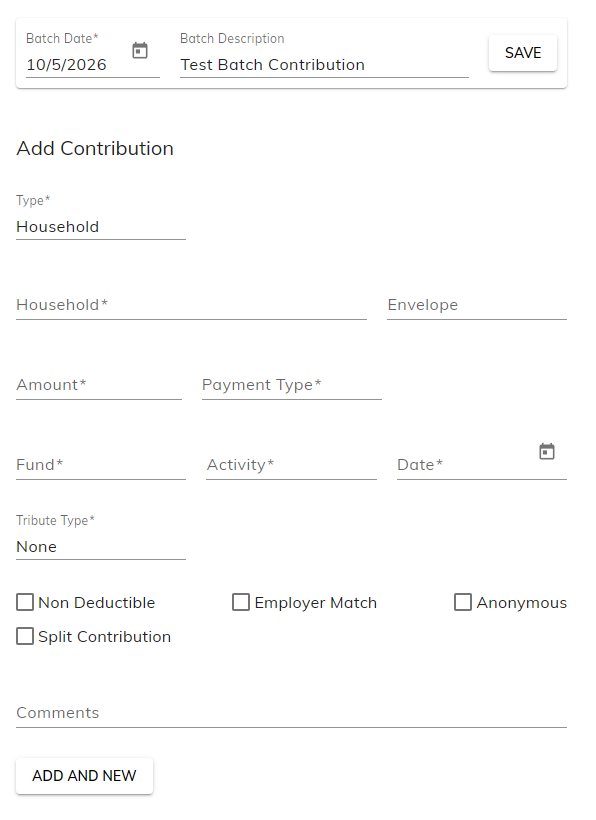
To start entering contributions to the batch, you are required to enter:
- Type: There are three types of contributions you can enter: Household, Community (organizations), and Loose (e.g., anonymous donors, visitors, households not in the database).
- Note: When entering a Loose contribution, make sure to include a comment that describes the Loose contribution.
- The Household/Community Name or Envelope/Community ID number
- Contribution Amount and Payment Type
- The Fund, Activity, and Date the contribution is for.
- Click Add and New.
The contribution then gets added to a running table on the right that total number of contributions and the dollar sum amount of contributions
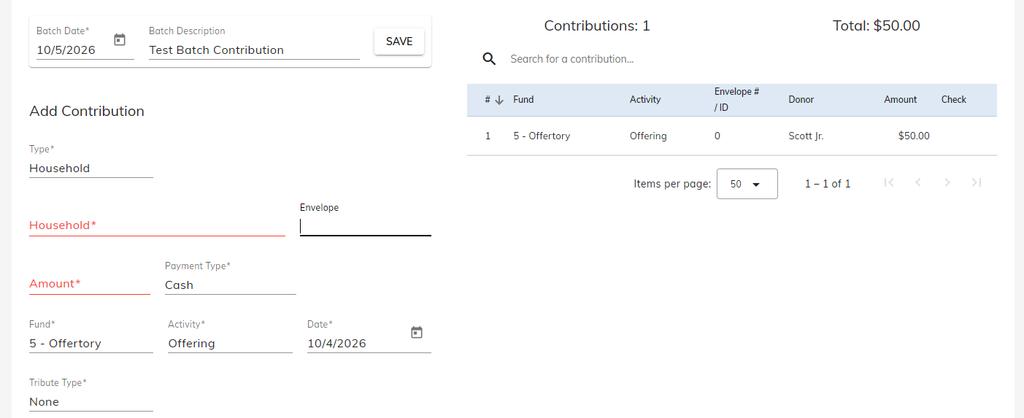
You’ll also notice that the Payment Type, Fund, Activity, and Date are all kept. From here, you can start entering contributions to the batch quickly!
- Type in the Household/Community Name or the Envelope/Community ID number. Press Enter.
- Place in the Amount. Press Enter. This will then add the contribution to the batch and take you back up to enter the next envelope number.
If you need to start putting in new contributions of either a different Fund, Payment Type, Contributor Type or anything else, you would need to delete the line first to get the selectable dropdown list again.
It is recommended to group your contributions to make the process quicker.
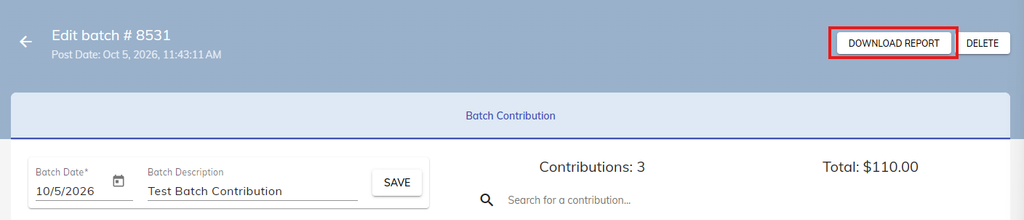
Once you have completed your batch, you can click the Post button. You can also download a report of the batch in the top right of your screen.
Editing Open or Closed Batches
On Camino, you can edit either Open or Closed batches. The process is all the same except for the final step in Closed batches.
- Click on the contribution you want to edit on the right table.
- On the left side make the edit that you need to for the contribution (e.g., Change the Amount, Payment Type, Fund, etc.)
- With an Open batch Press the Update button.
- With a Posted batch. Enter a Reason for Change. Then, you can press the Update button.
When modifying a Posted batch, the modified contribution will be highlighted in yellow.

You can also click on the Delete button if you ever need to remove a contribution from a batch as well. You can remove contributions on both Open and Posted batches.