Camino
Procedures Walk Through
There are several Procedures that can be completed in Administration → Procedures found on the left menu. This walkthrough will cover Batch Tags, Sacrament Batch, Formation Year End, and Grade Promotion.
General Procedures
Batch Tags
Rather than having to go to each individual household or member’s Tags, Ministries, or Talents screen, you can assign those various tags more quickly under the Batch Tags Procedure.
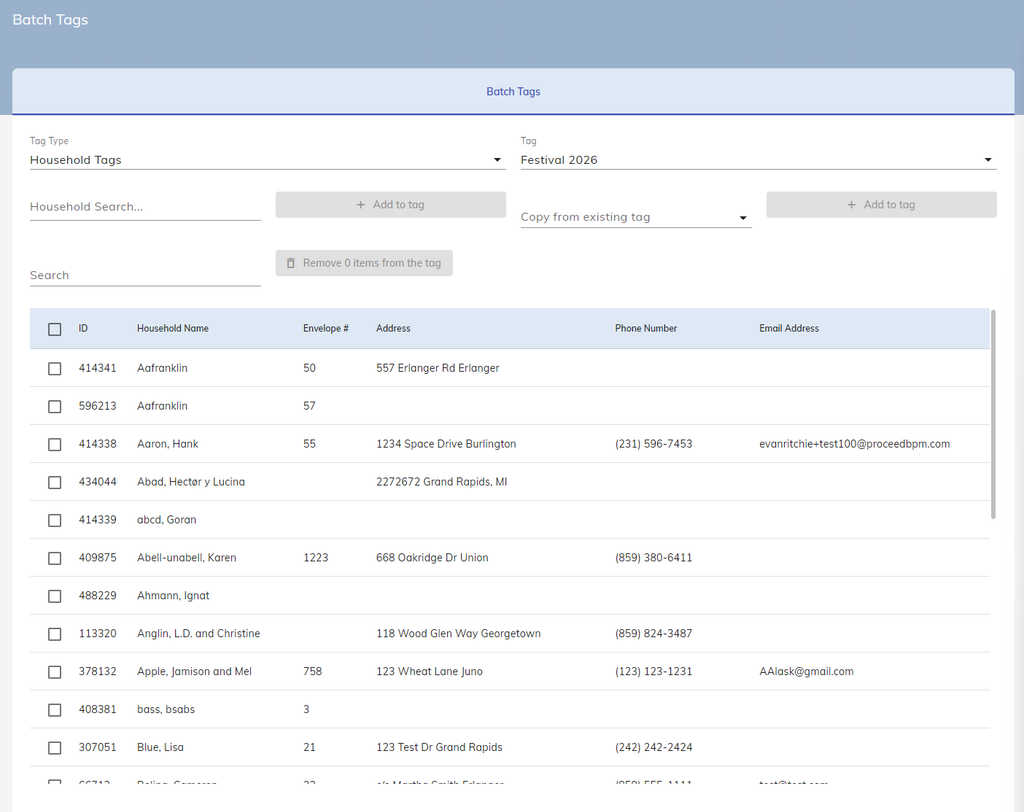
Select a Tag Type then a specific Tag from that type. Your screen will update and you can begin adding people to that Tag. In this case, we are using Household Tags.
Use the Household Search line then click Add to Tag to give the household that tag. That name will then appear in the list that builds at the bottom half of your screen.
If you want to remove someone from that tag, you would click on the Checkbox next to that person’s ID, then click Remove # Items From the Tag. You can click the Checkbox in the blue to select all the people who have that tag.
You can also use the Search line to find someone who has that tag as well.
Lastly, there is a Copy From Existing Tag. You can select another pre-existing tag from the drop down. When you click Add to Tag, everyone who has this other tag will be assigned the one you selected on the top-right dropdown.
Sacrament Batch
Rather than having to go to each individual member’s Sacraments screen, you can post sacraments for multiple people more quickly using Sacrament Batches.
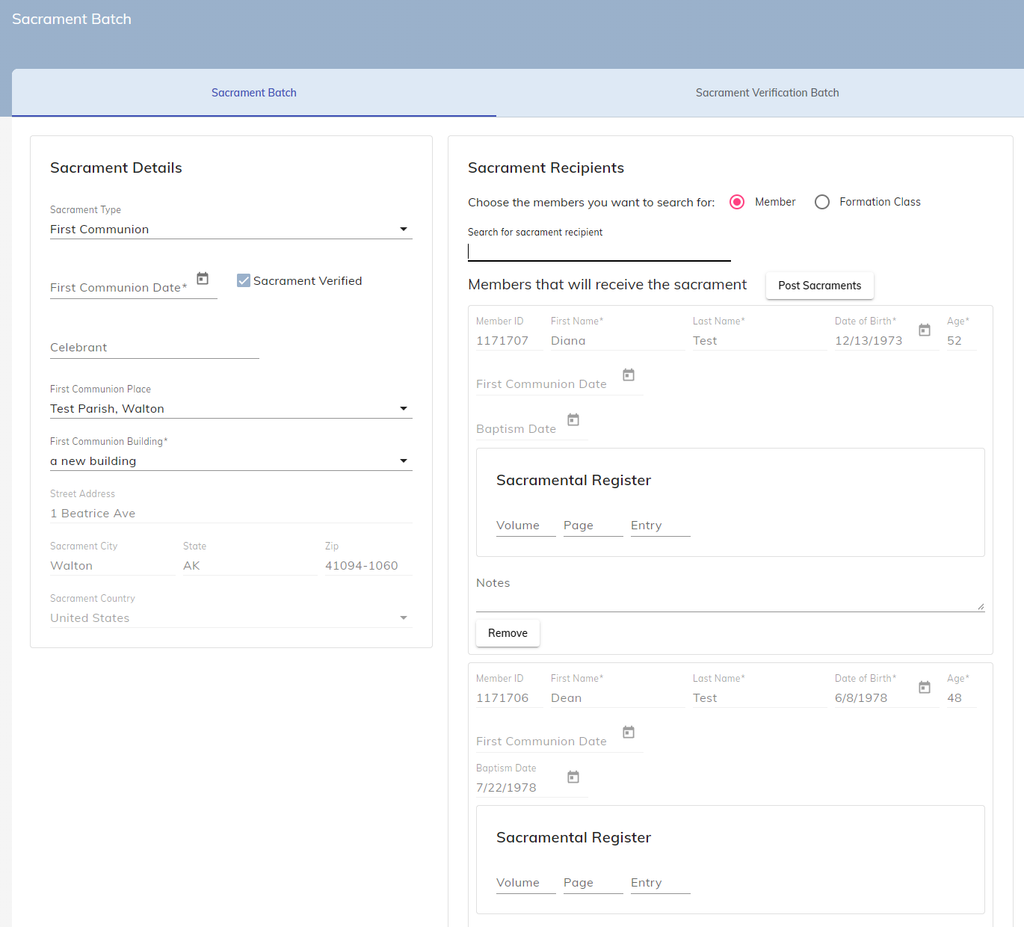
Underneath Sacrament Details, select the Sacrament Type, the Date the sacrament was completed for all the people in the batch.
Enter the Celebrant and Place that the sacrament was completed at. If you added and Buildings to your parish in Camino, it will also prompt you to select a building the sacrament was completed at.
On the right side you can select to either enter the Recipients based on searching for Members or based on Formation Class.
Select all the recipients and enter any individual information for each recipient as needed.
Once all information is added, click on Post Sacraments.
Formation Procedures
Formation Year End
When beginning a Formation Year End Procedure, you have three different options presented: Start Close Class Process, Start Copy Class Process, Start Copy Class and Roster Process.

Close Class Process
The Close Class Process allows you to close out and deactivate multiple classes at once. All students within that class will also be marked as having Completed their class as well.
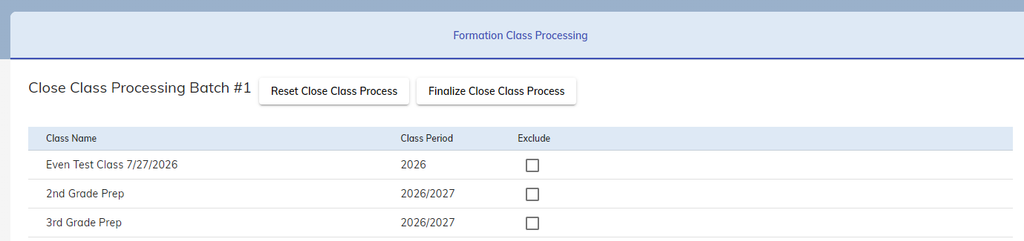
Automatically, all classes are included in the closing process. There is an EXCLUDE column where you can select any classes that you want to keep OPEN.
Copy Class Process
The Copy Class Process allows you to copy class information and bring it to the following school year if you so wanted to. You will first have to select the Class Period of classes that you want to copy.

Once you click on the Start Copy Process With the Selected Class Period button, your screen will then update to show you the list of classes that will be copied. Automatically, all class are included in the copy process. To exclude any of the classes, UNCHECK the class you DO NOT want to copy.
This will also copy the online registration form of the class. However, if the class uses a Legacy Registration Form, this form does not get copied during the process.
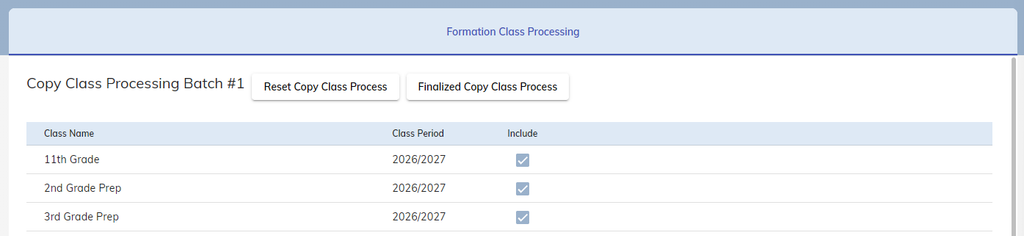
The Copy Class and Roster process functions the same way. This time, all students are included in the copy process as well.
Grade Promotion
The Grade Promotion Process allows you to promote a number of students at once to the next Grade Level.
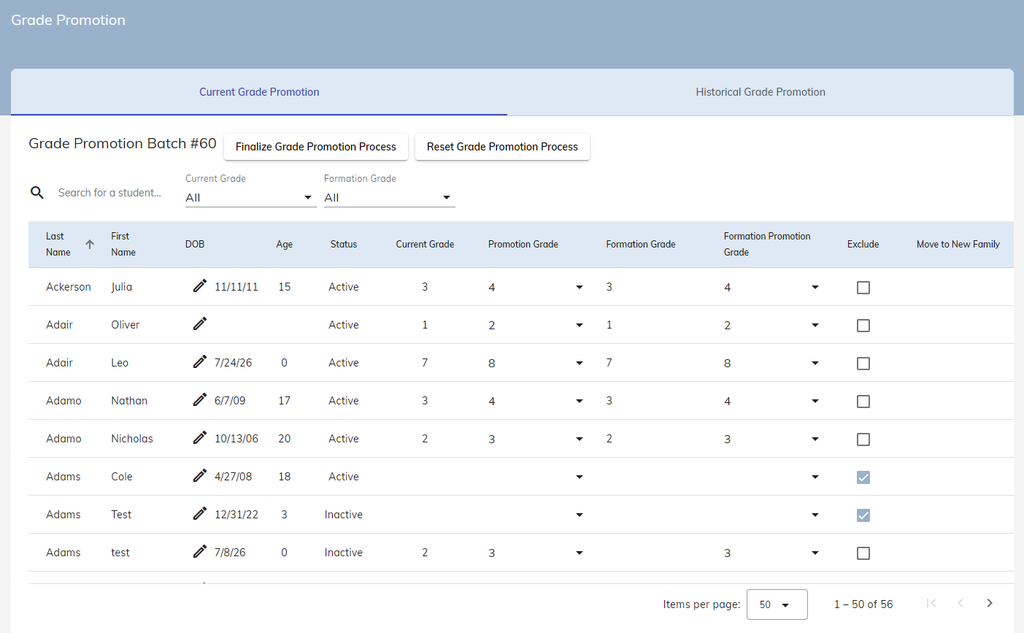
If the student already has a Grade Level, the process automatically assigns them the next grade level.
You will need to search for and assign the Grade Level and their Promotion Grade for any student that does not yet have one assigned on their profile.
This will also automatically Exclude any member that doesn’t have an assigned Grade Level.