To provide the best possible service and resolve your issue efficiently,
a support technician may need to view your computer screen exactly as you
see it. If needed, our support staff will ask you to click the Remote
Assistance button to launch the remote viewer and will guide you step by
step through the simple process of connecting.
How to translate a webpage to a different language
Updated
Chrome
Open the webpage
Once the page has loaded, right click anywhere on the page
Click on ‘Translate to English’
Click the dropdown and choose your preferred language
The page will now appear in the preferred language
Microsoft Edge
Open the webpage
Once the page has loaded, right click anywhere on the page
Click on ‘Translate to English’
Next to the bookmark star a language icon will appear
Click on that icon
Click the dropdown and choose your preferred language
Click ‘Translate’
The page will now appear in the preferred language
Firefox
Firefox does not have a way to translate webpages. We recommend using Google Chrome or Microsoft Edge. A Google Translate extension can be downloaded to Firefox
iPhone
Open the webpage
Once the page has loaded, click on the ‘aA’ in the top left corner
Click ‘Translate Website’
Choose desired language from dropdown that appears at bottom of screen
The page will now appear in the preferred language
Android (Chrome)
Open the webpage
Once the page has loaded, click on the three bars. They will be located in either the top right or bottom right corner of the screen
Scroll until ‘Translate’ is found. Click ‘Translate’
In the top left corner a blue icon will appear. Click on that
Choose the language that you are translating from and then the language to translate to
Click ‘Translate’
The page will now appear in the preferred language
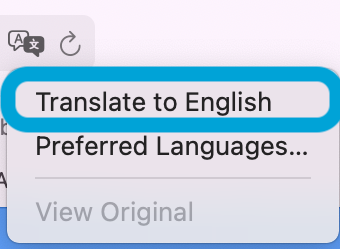
Safari
Open the webpage
Once the page has loaded, look for the translate button
Click the translate button, then choose preferred languages
Choose the language you wish to translate to
The page will now appear in the preferred language