To provide the best possible service and resolve your issue efficiently,
a support technician may need to view your computer screen exactly as you
see it. If needed, our support staff will ask you to click the Remote
Assistance button to launch the remote viewer and will guide you step by
step through the simple process of connecting.
Note: Only follow these steps if the user you are resetting the password for has already successfully logged into Camino previously.
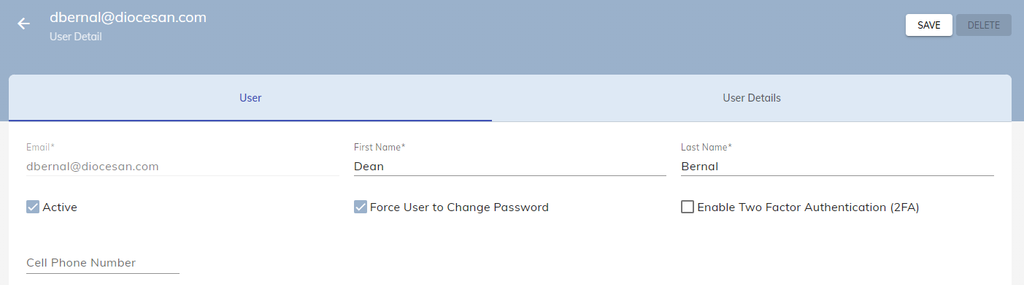
Go to Administration → Users and Roles → Users and then click on the User who you want to reset their password.
Check the Force User to Change Password box, then click the Save button.
This will send them an email that contains a temporary password for them to sign-in on their account on Camino.
Note: This email may occasionally appear in their Spam or Junk folder, so check there as well! If they are not receiving the email, please contact the Camino Support Team.
For New Users
If you have added a new user and they are unable to access their account, whether it is due to their temporary password expiring or never receiving a the email, and you want to try again, do not follow the previous steps.
If the New User needs the email again, you will have to Delete the user from Camino first. Then add the user back into the system.
Follow the Adding New Users guide on how to add the user back into the system.
User Changed Email
You can not change the email for a user in Camino. They will need to be added into Camino using their new email.
On their old account in Camino, uncheck the Active box and press Save. This will deactivate the account so it no longer has access to Camino.
Doing so allows for reports, such as the Audit Household/Members report to continue to pull information of any changes the account did on Camino.
Follow the Adding New Users guide on how to add the user with their new email into the system.