To provide the best possible service and resolve your issue efficiently,
a support technician may need to view your computer screen exactly as you
see it. If needed, our support staff will ask you to click the Remote
Assistance button to launch the remote viewer and will guide you step by
step through the simple process of connecting.
This is a right that must be assigned to a role. The right is called “Ability to bulk load Sacrament data for large groups.”
After this right has been added to a role, the feature can be found under Administration > Procedures > Sacrament Batch
There are four types of sacrament batches that can be entered
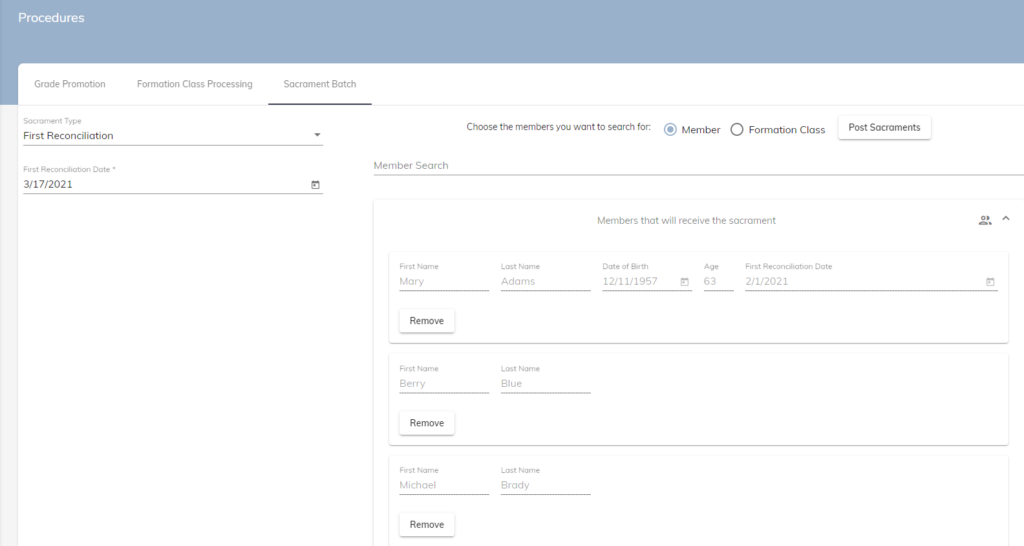
First Reconciliation
Enter the date on the left and then choose the how you want to search, either Members or Formation Classes (this applies to all four situations) – Formation example is the last example in this list
When Member is selected, use the Member Search to build your list
Notice that if a First Reconciliation Date has already been entered for this member, it is displayed so that you can decide if it should be overwritten
When Finished click Post Sacraments which will update the member records
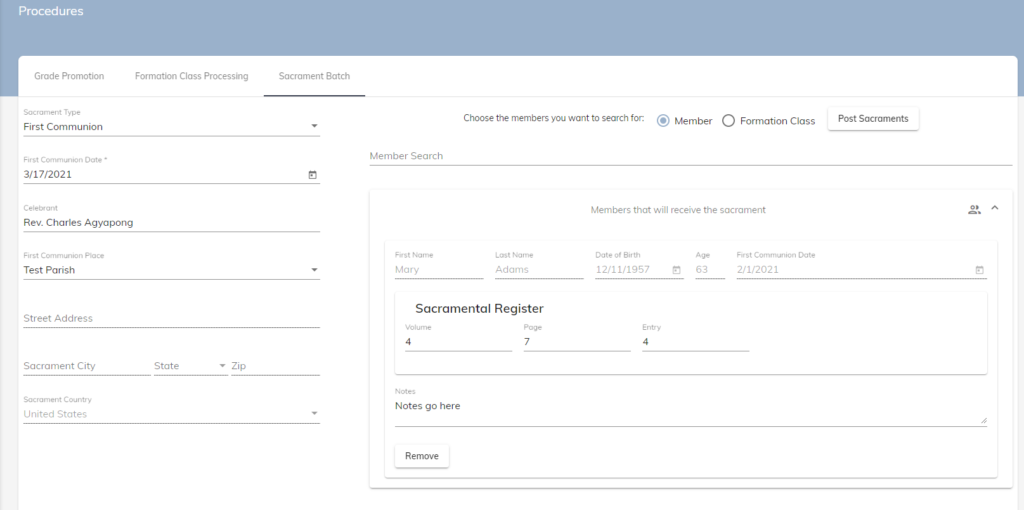
First Communion
For First Communions, enter the Sacrament Date, select or type in the Celebrant, and select the Parish. The Parish will default to the parish that you are logged in to
When Member is selected, use the Member Search to build your list
On the right side, for each member, enter the Sacramental Register Data and any notes
Click Post Sacraments will update all of these member’s sacrament records
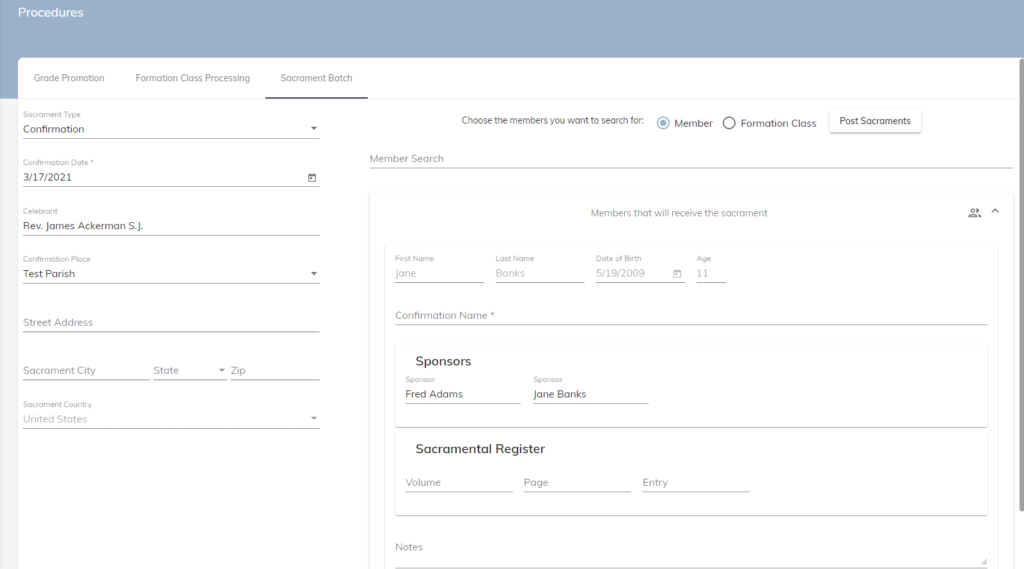
Confirmation
For Confirmations, enter the Sacrament Date, select or type in the Celebrant, and select the Parish. The Parish will default to the parish that you are currently logged in
On the right side, for each member, you are required to enter a Confirmation Name. Enter Sponsor names and enter the Sacramental Register Data and any notes
Click Post Sacraments will update all of these member’s sacrament records
Confirmation (Sponsor Only)
Similar to Confirmation, choose the Confirmation (Sponsor Only) option, enter the Confirmation Sponsors for members, and Confirmation Name/Notes optionally, prior to the Confirmation Date
Along with this feature, the regular Sacrament Screens also allow the Confirmation Sponsor to be saved without a Confirmation Date
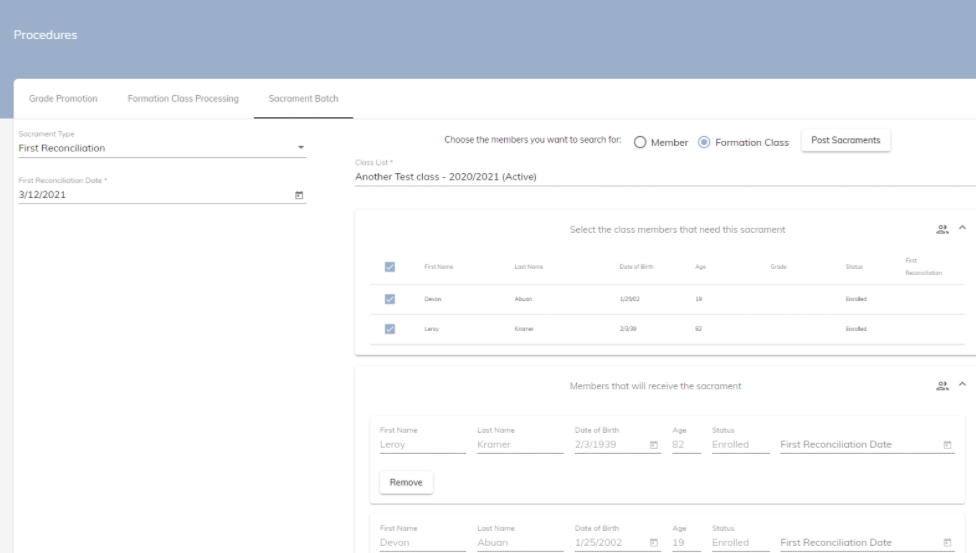
Formation Example
When Formation Class is chosen, select a Formation class to record the sacrament. Check the box next to First Name to select all of the students. Then unselect any students that are not receiving the sacrament